 LoRA Dataset Studio
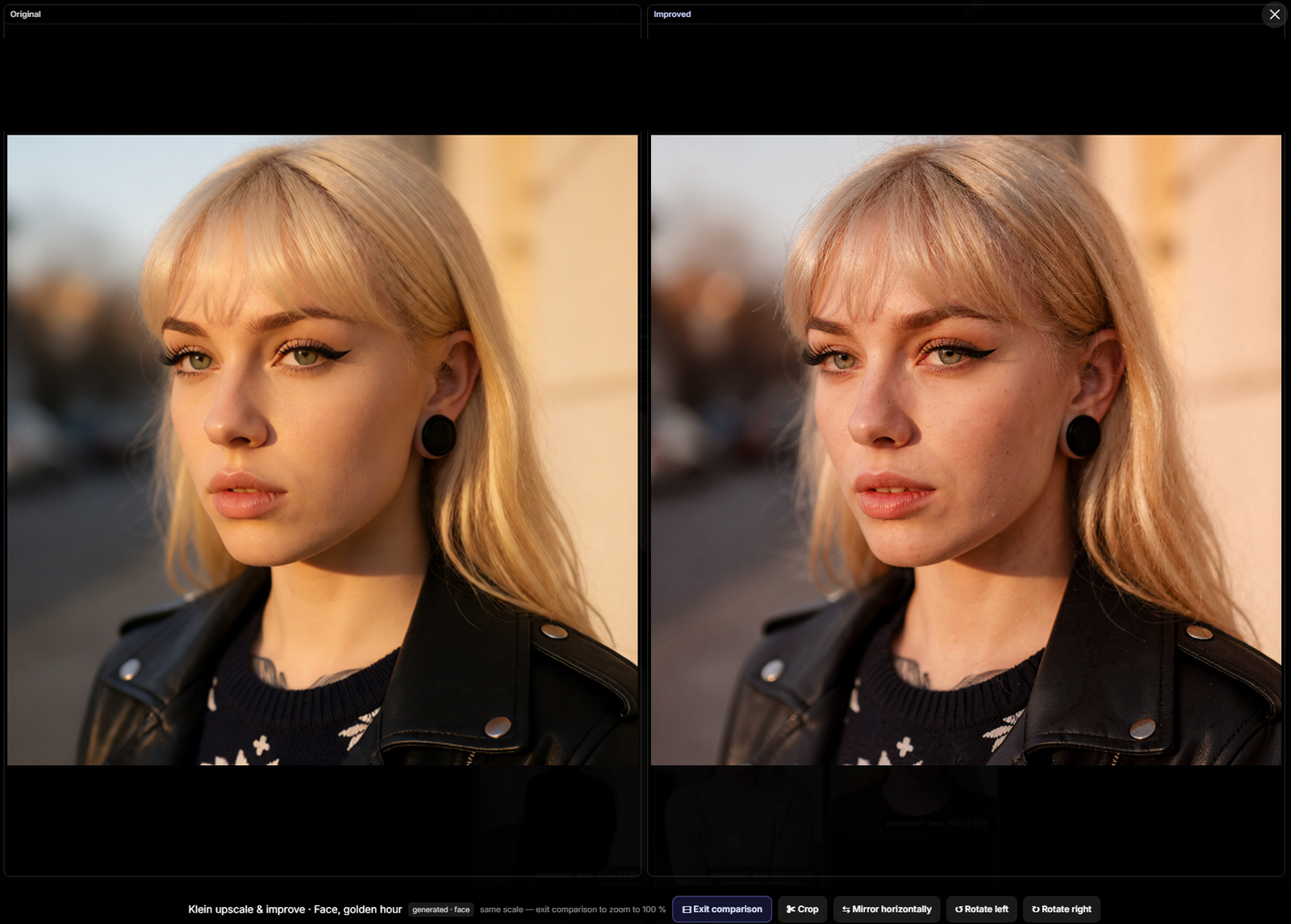
Install SeedVR2 to restore and upscale with high-resolution tiling, or Klein Improve to re-render detail from instructions; both are optional LoRA Dataset Studio (LDS) plugins that run on your local ComfyUI. SeedVR2 resolves detail and leaves the original look alone, while Klein makes images sharper but can shift skin and colour. In a dataset the result is a candidate shown next to its original at the same scale, and the original stays in use until you keep the candidate.
| SeedVR2 | Klein Improve | |
|---|---|---|
| What it does | Restores and upscales, with high-resolution tiling | Re-renders detail following an instruction, with LoRA presets |
| Effect on the look | Leaves it alone | Sharper; skin and colour can shift |
| Needs | ComfyUI, the SeedVR2 node pack and two model files (about 3.9 GB); optional TTP nodes for tiling | ComfyUI and the Klein models |
| Finishing | Sharpen and grain | Colour match, sharpen and grain |
Install each from Plugins → Store and prepare it from its own settings; neither requires the other.
Prepare SeedVR2 installs the node pack, its dependencies and both model files on a recognized Windows portable ComfyUI with Python 3.12 or later. For other installations, prepare the upstream node pack in ComfyUI first; LDS then downloads the missing model files and checks the loaded node classes. Restart ComfyUI yourself, then press Re-check. Installing the plugin alone starts no GPU work and no model download.
- Dataset: Upscale & improve, in the image lightbox or on the bulk toolbar, creates a candidate. Compare with original shows both at the same scale and framing, with zoom turned off so the comparison stays fair. Keeping the candidate returns the original to Undecided, so the improved image is the one that trains; nothing is deleted.
- Image Bank: Upscale & improve is a background pass on the Edits panel, scoped to kept, undecided, unkept or selected images, with the engine picked on the panel. There is no candidate step: the result replaces what the bank shows, your source files are never written, and Revert or Undo last edit brings the previous image back.
- Generated shots: the local engines render at up to 2.0 MP. To go bigger, generate at 2.0 and then run Upscale & improve, which Klein can take to 8 MP.
- Klein's shipped improve instruction describes a photograph:
add detailed texture, add sharp details, add candid shot, add soft focus effect. On anime or illustration it adds skin texture the art never had. Edit the instruction or turn it off for drawn datasets; both controls are reachable from the Upscale & improve window. - Each pass spends minutes of GPU time per image.
- SeedVR2 tiling does not promise constant RAM or VRAM, the model can still introduce differences between tiles, and the Bank and Dataset dialogs do not preview the exact tile count. CPU tests do not qualify GPU image quality.
- An Image Bank pass does not re-run on an image it has already improved; undo the last edit to try again.