 LoRA Dataset Studio
← Documentation index · Install first · Task-level guide
This is the long-form route from an empty dataset to an exported LoRA. The root README keeps only the compact capability tables; this guide carries the screenshots, decisions and stage-by-stage detail.
| Stop | Outcome |
|---|---|
| 1. Decide what you are teaching | Dataset kind, subject type, trigger and target family are defined |
| 2. Fill it with images | References, imports, scrapes or Image Bank keepers enter the dataset |
| 3. Curate down to the keepers | Off-identity, weak and redundant shots are removed |
| 4. Caption for the model | Every kept image has family- and kind-appropriate wording |
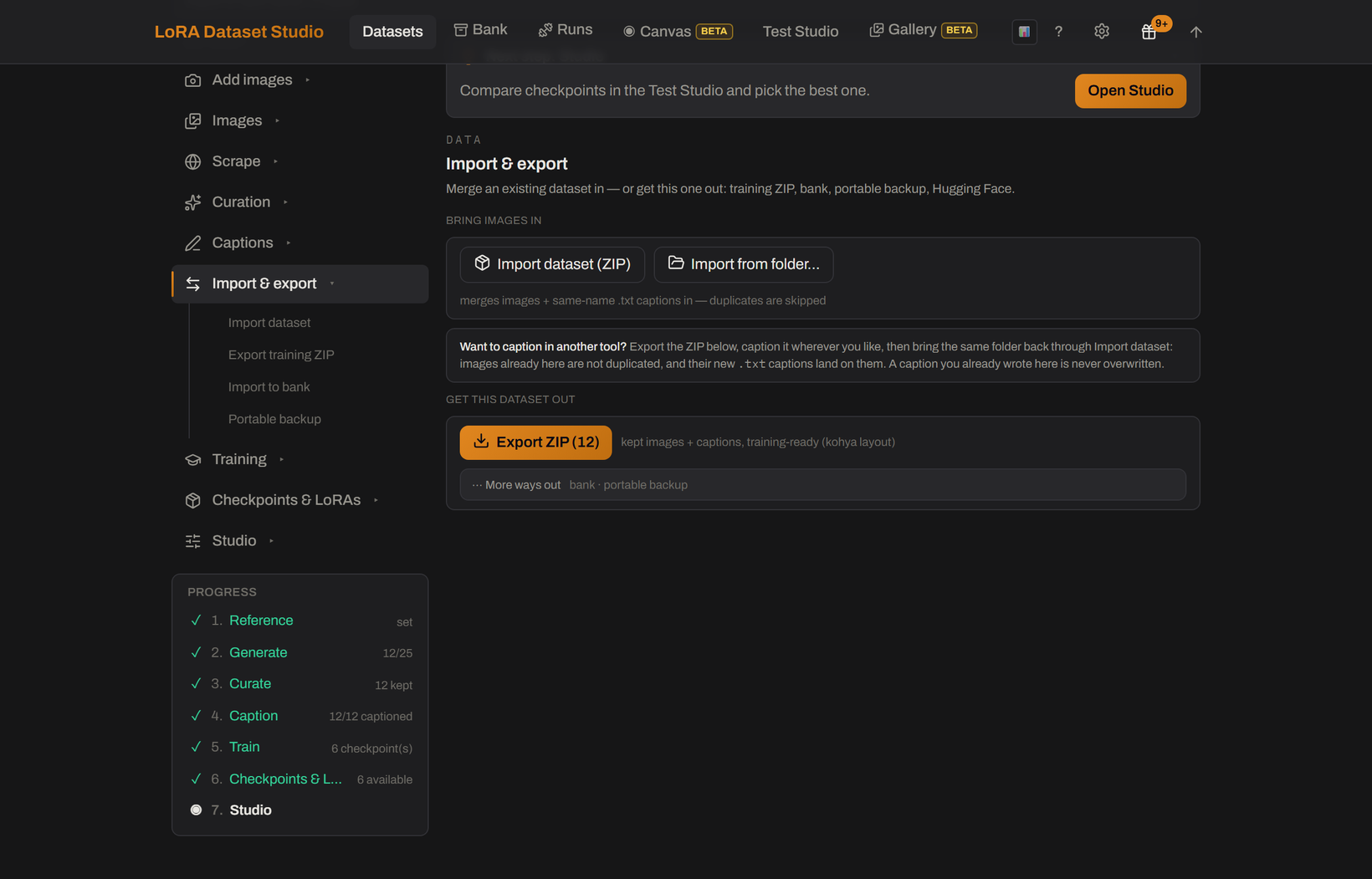
| 5. Scrub watermarks | Marks are reviewed and removed without losing originals |
| 6. Train | A guarded local or cloud run produces checkpoints |
| 7. Read the family tree | Runs, continuations, settings and previews remain traceable |
| 8. Pick the best checkpoint | Fixed-seed comparisons identify the useful checkpoint and strength |
| 9. Take it with you | The dataset, LoRA and history leave in standard or portable formats |
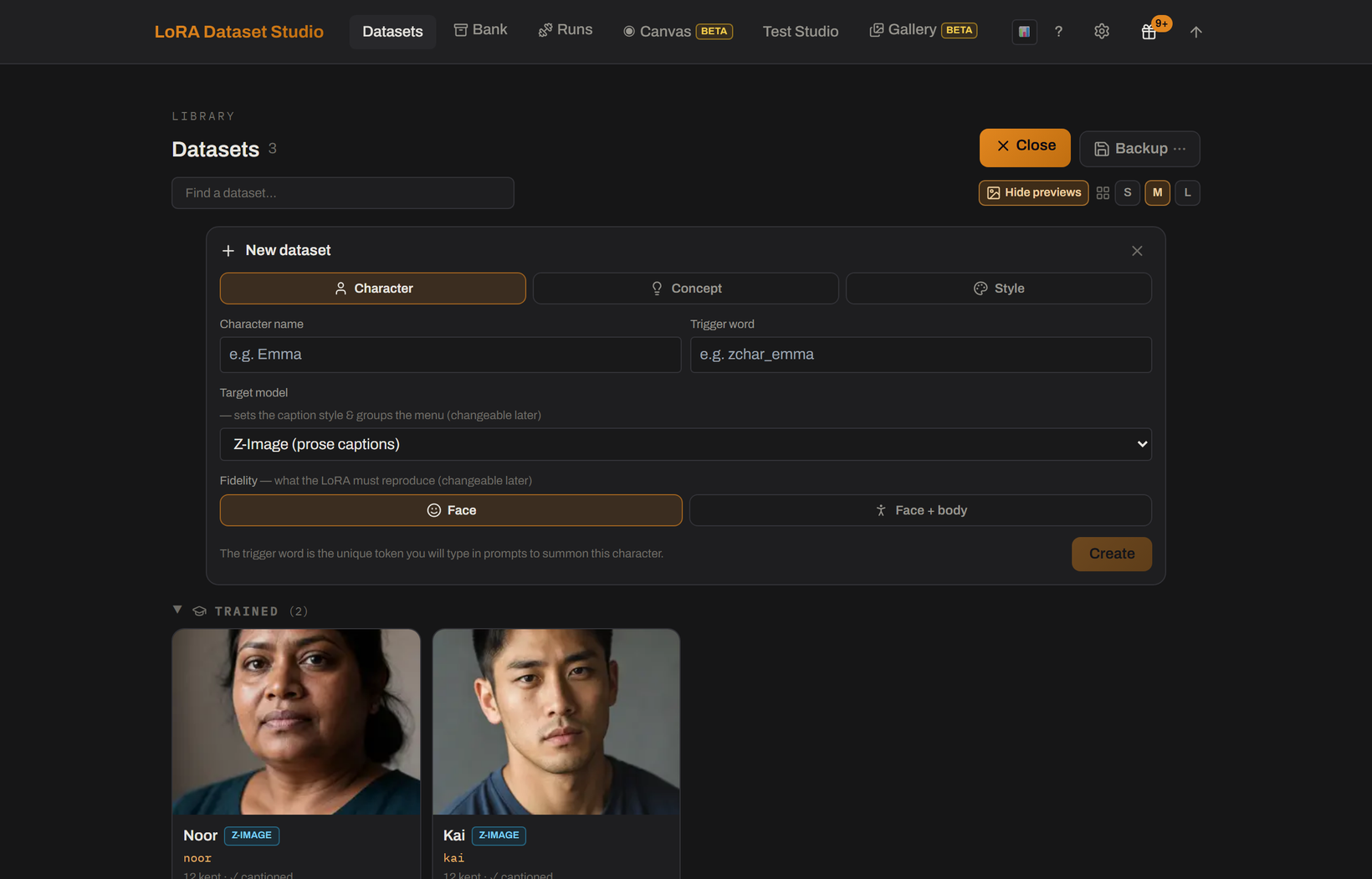
Create a dataset as Character, Concept or Style. This choice changes real downstream behavior:
| Kind | Trigger and captions | Masks and training policy |
|---|---|---|
| Character | Uses an activation trigger; captions keep changeable details promptable while the identity stays implicit | Person masks are available; the composition meter tracks face/bust/body/back variety |
| Concept | Uses a trigger; captions describe everything except the concept and the leak check catches its accidental return | Person masks are off; optional face masks can reduce identity learning |
| Style | No trigger; captions describe content while leaving the aesthetic unspoken | Person masks are off and Style-specific readiness checks catch weak or repeated captions |
A Character also has a subject type: Human, Animal, Creature, Object, Other or Anime. The choice swaps both the shot catalog and identity lock. Anime protects the design, outfit, distinctive marks and illustrated rendering; it explicitly avoids turning the subject into a photograph.
You can change dataset kind later in Dataset settings. The confirmation explains which rules change and does not delete images.
Sources mix freely inside one dataset:
| Source | When to use it |
|---|---|
| Generate from references | Build a Character set from one primary reference and optional extra angles |
| Import | Bring your own JPEG, PNG, WebP, BMP, HEIC or AVIF images; Character can auto-crop while Concept/Style preserve the frame |
| Scrape | Select permitted material from Reddit, Pexels or supported gallery/direct-media URLs |
| Image Bank | Triage a large unsorted folder or scrape before promoting a smaller set |
The workspace offers five engines:
-
Nano Banana Pro through Gemini, ChatGPT through
gpt-image-2, and OpenRouter are API lanes. - Klein and Krea 2 Edit run through your own ComfyUI.
- You can select several engines in one batch; the requested shots are divided between them and every result names its engine.
- Krea 2 Edit uses the primary reference and the selected card's framing. It preserves identity without needing a character LoRA first.
The variation catalog fans out expression, angle, lighting, framing, outfit and background. Each subject type has its own catalog, catalogs import/export as JSON, and a one-off custom shot can be kept permanently.
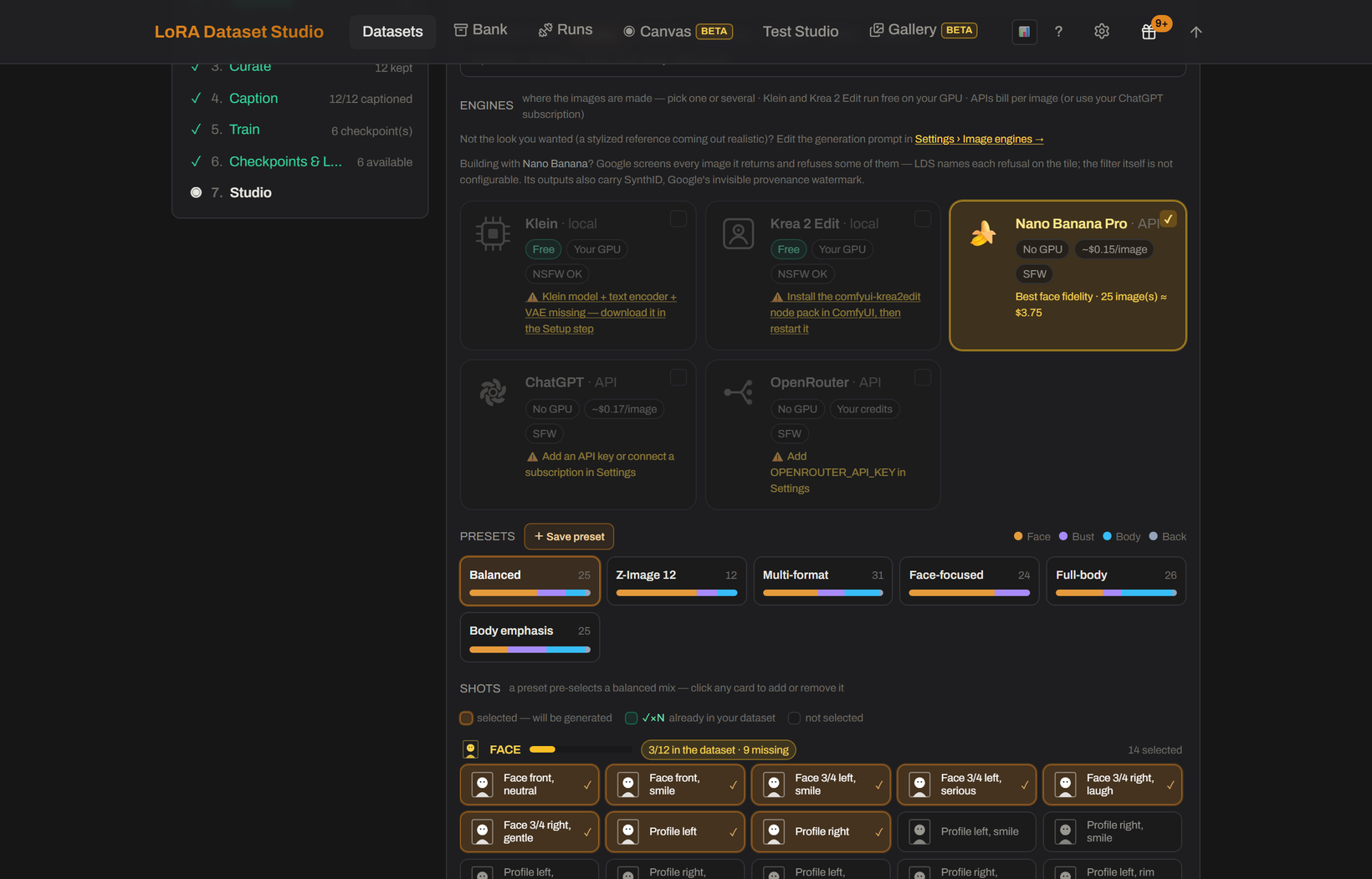
Ticking more than one engine adds a second decision. Split across engines sends each shot to a single engine, so the batch costs what one engine would cost but the dataset gains variety; All engines renders every shot on every engine for a side-by-side comparison, and multiplies the cost accordingly. The same panel imports real photos, opens the scraper and pulls keepers out of an Image Bank.
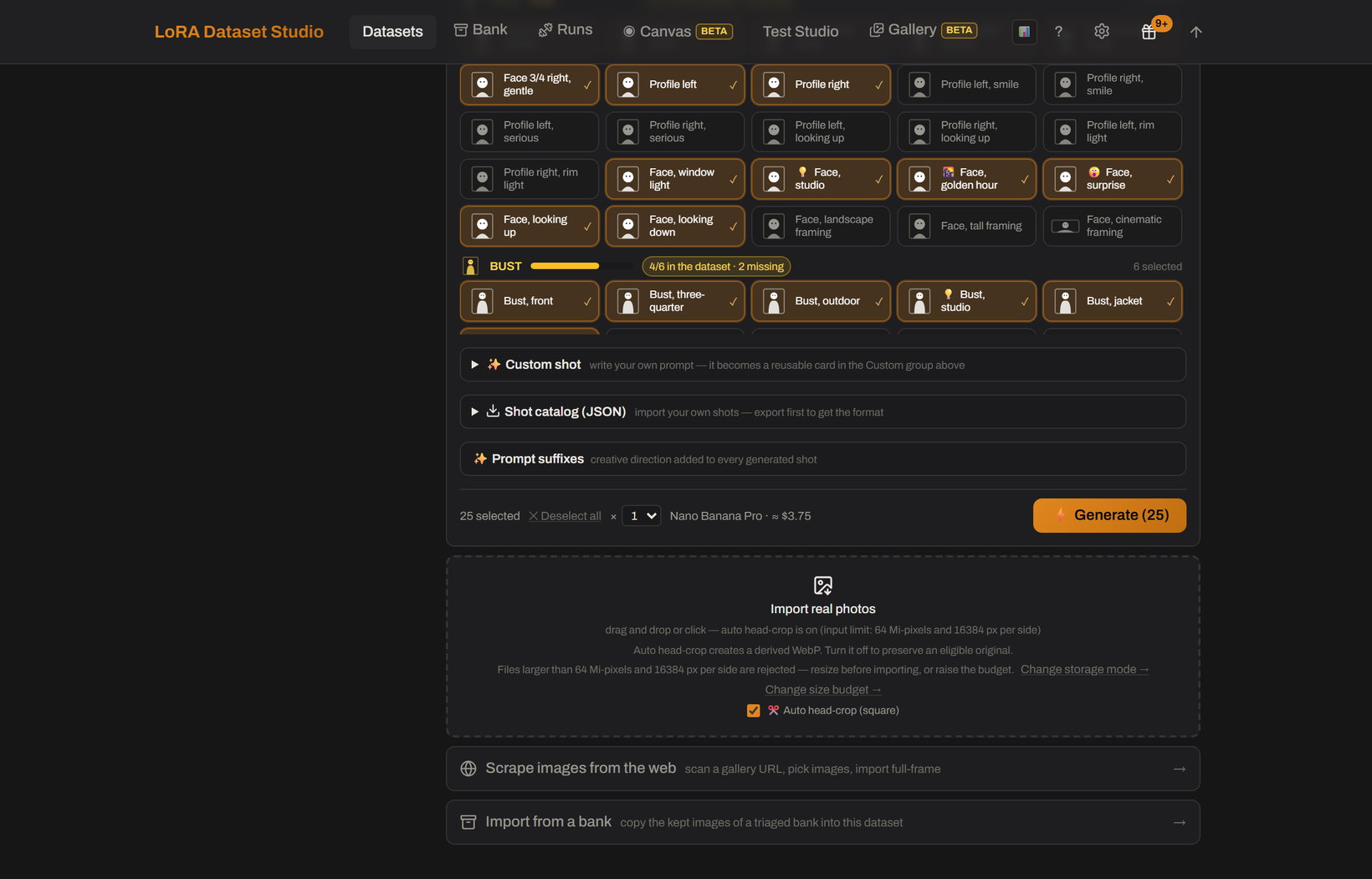
Every generated tile reopens the exact prompt used to make it. The separate reference editor also supports Retry, which repeats the exact prompt, engine and temporary references of that candidate; choose Try another prompt only when changing the instruction.
Provider limits are part of the workflow:
- Gemini screens returned images, may produce a successful response with no image, and applies invisible SynthID provenance. The filter is not configurable. LoRA Dataset Studio reports the provider reason but cannot override it. See what the Gemini engine will and will not do.
- OpenRouter uses its own credits but forwards to the selected upstream model; it does not remove that model's restrictions. See Image engines.
- The experimental ChatGPT-subscription lane is separate from OpenAI API billing and may stop working if the undocumented endpoint changes. See ChatGPT subscription.
- NSFW catalog variations remain local-only. Do not send content a provider forbids.
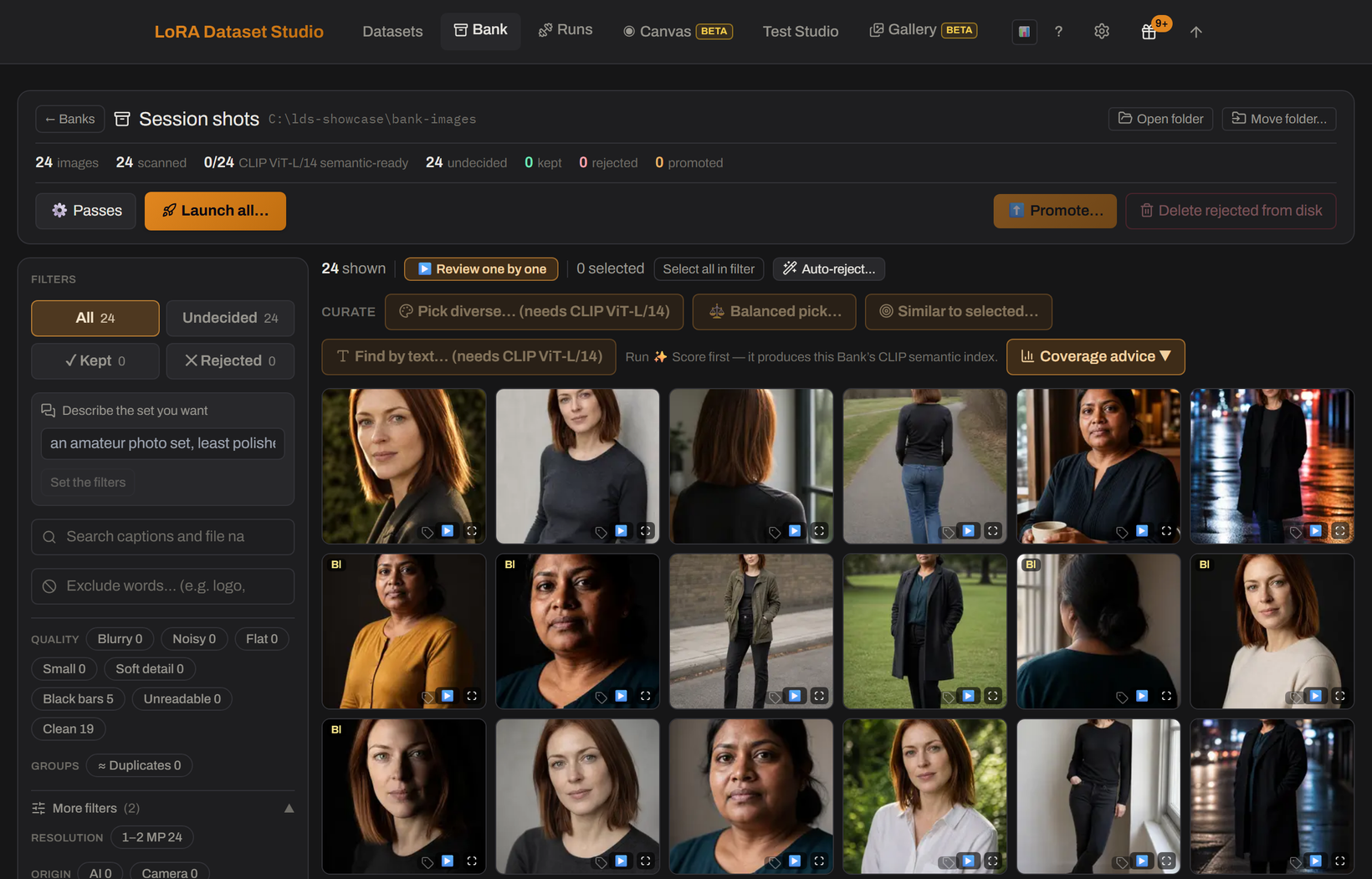
The Bank tab inventories a live folder in place, or scrapes into a new/existing bank. It can quality-scan, score, group duplicates/crops/people/styles, caption, search, sort, rotate, review, build diverse or framing-balanced shortlists, edit watermark masks, and promote keepers.
The two directions are explicit copies:
- Bank → dataset promotes keepers through the normal import path and carries compatible captions, decisions and provenance.
- Dataset → bank creates a bank from dataset keepers without making the original files share ownership.
Nothing in a source folder is removed unless you explicitly choose Delete rejected. Watermark cleaning writes a separate derivative. The task-level Image Bank guide covers shortlist banks, sorts, re-runs, comparisons, folder moves and the full metadata round trip.
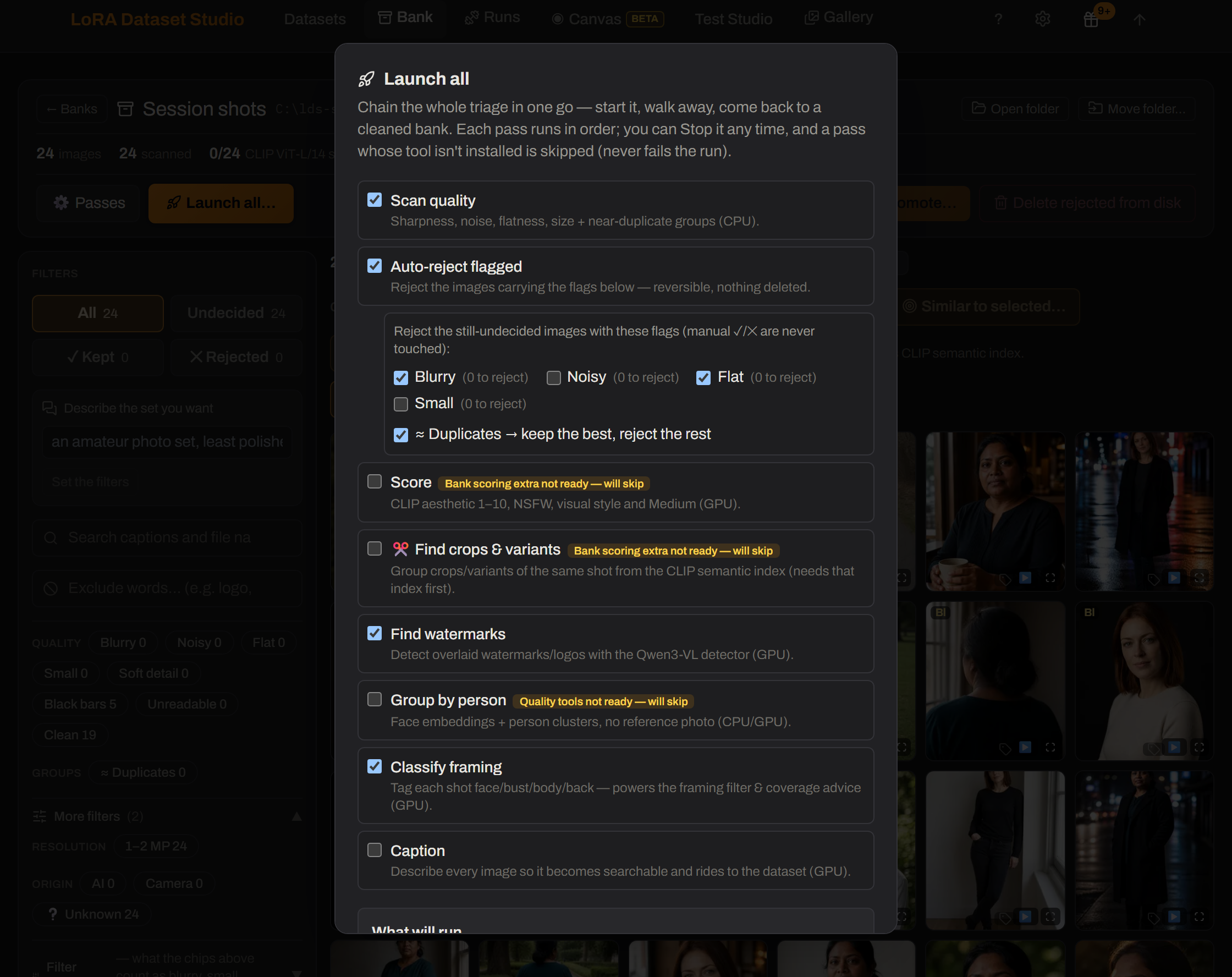
Launch all chains the passes you tick into one unattended run, in a fixed order. A pass whose tool is not installed is announced as will skip before you start and never fails the run, and the dialog lists exactly what is about to execute.
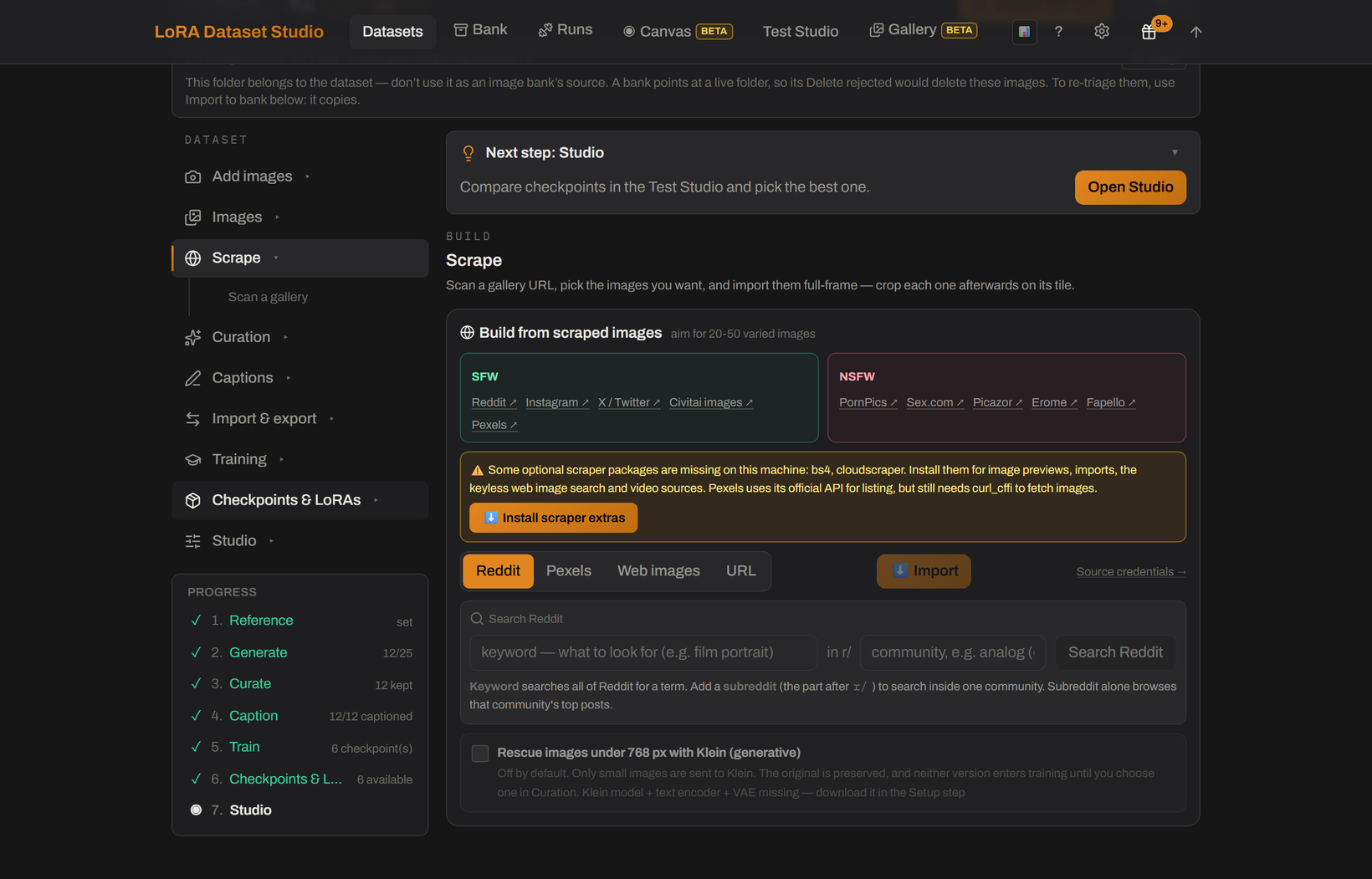
The scraper's Reddit | Pexels | URL switch keeps each source separate. It de-duplicates near-identical results, blocks internal/loopback URLs, hides dead media, and applies dataset quality filters when importing directly into a dataset. Scraping into a bank intentionally stores first and lets the bank's own passes decide later.
Credentials live in Settings → Scraping & sources. A personal Reddit client ID avoids the shared public quota. Pexels always requires an API key and uses its official API.
Pexels authorization required: an API key alone does not authorize dataset or machine-learning use. Configure this source only if Pexels has explicitly authorized the use case. Read the official Pexels terms and conditions; the app requires a locally stored confirmation before a Pexels query can run.
The scraper can reach adult sources. Use only material you have the right and consent to train on; see Legal & responsible use.
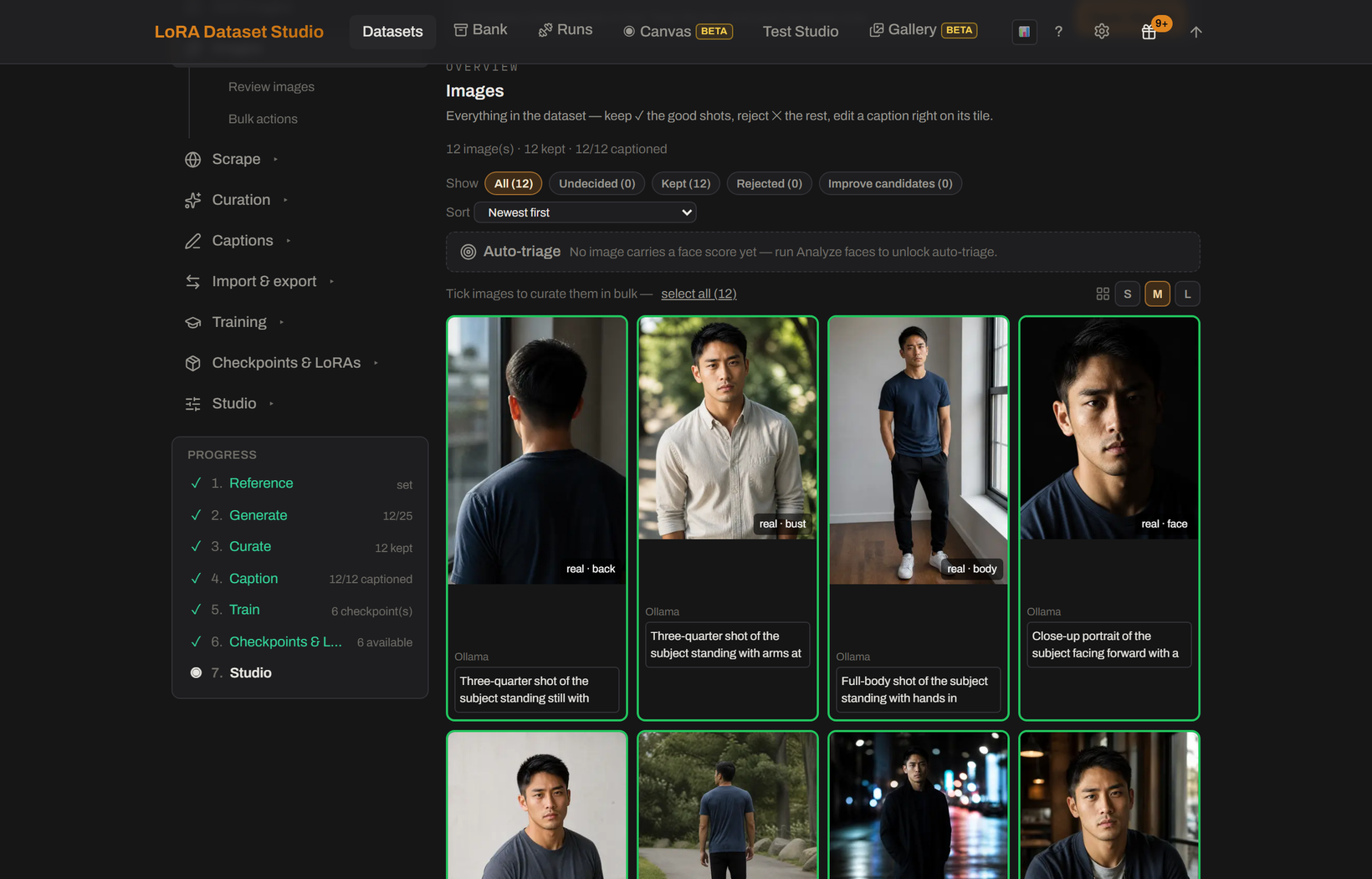
The curation grid is built for decisions rather than file browsing:
- keep, reject or undecide one or many images;
- crop, mirror, rotate, zoom or resize without leaving the workspace;
- score Character identity against the primary reference with InsightFace;
- apply score-based auto-triage while preserving later manual decisions;
- classify face/bust/body/back and fill the live composition meter;
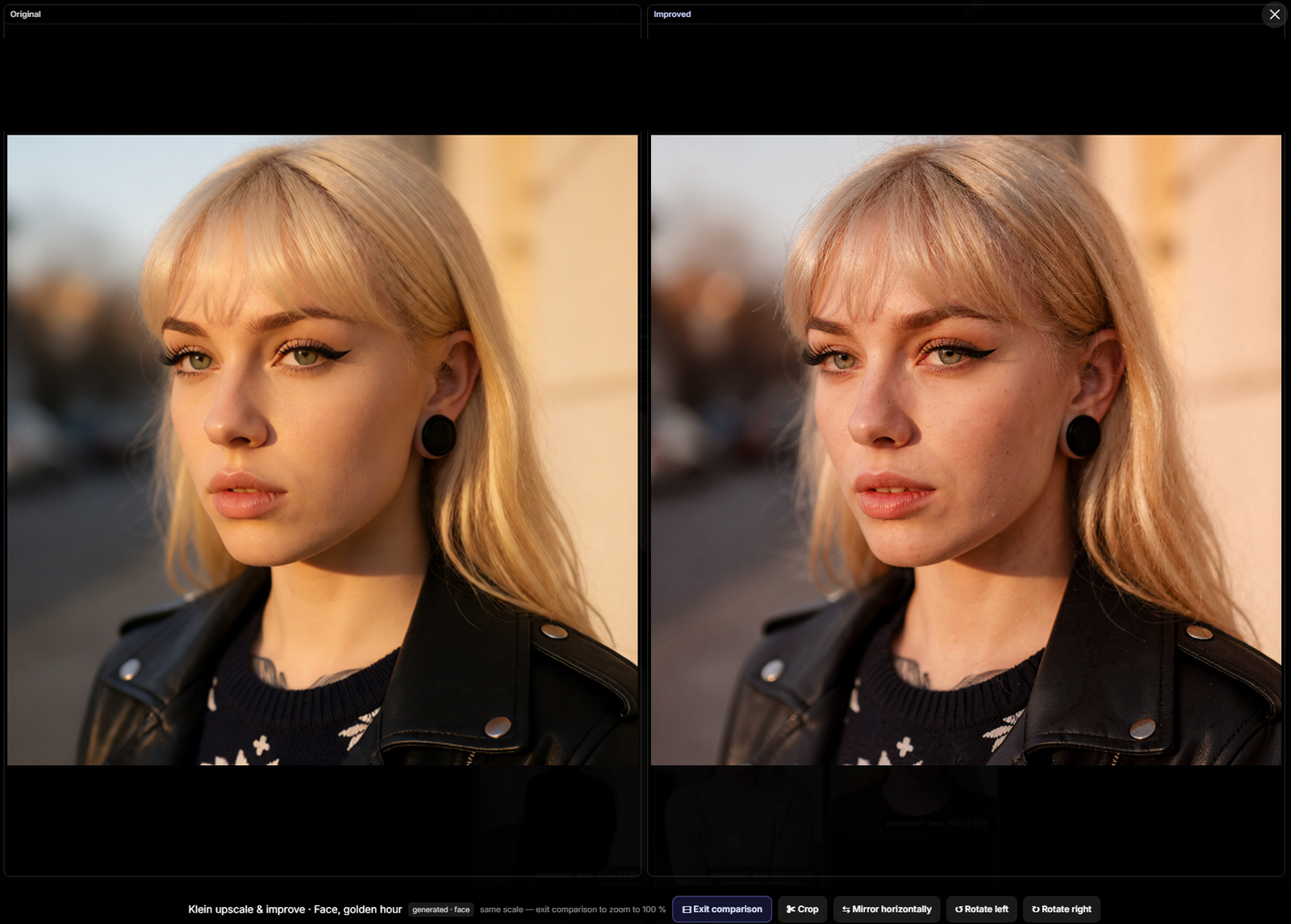
- create a separate Klein improvement candidate, compare it with the original, then keep the better one.
Long captioning, face, framing and watermark jobs are server-side and reconnect after a page reload.
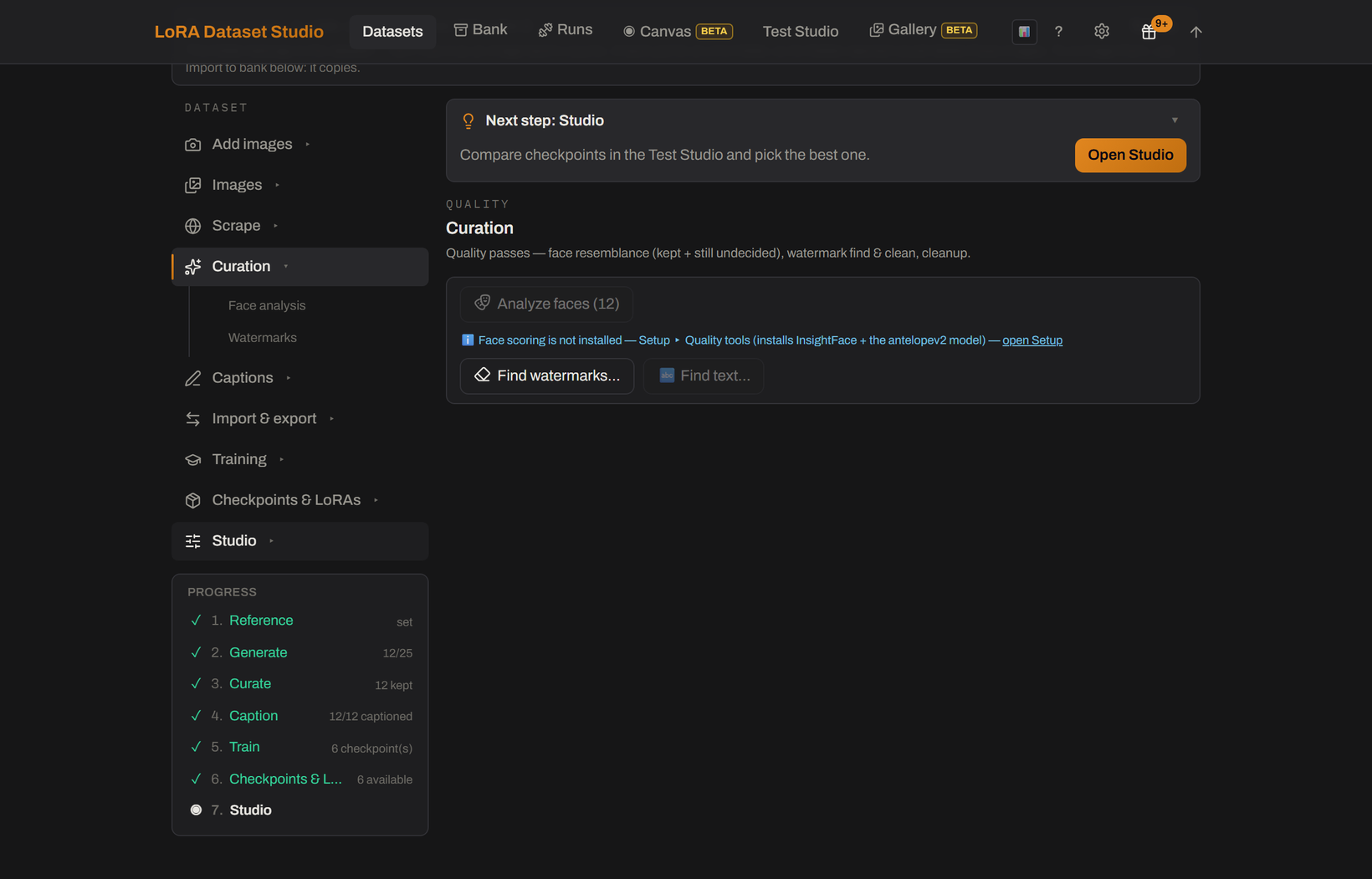
The Curation step itself holds the passes that run over the whole set rather than one image: face resemblance against the reference, and watermark find & clean.
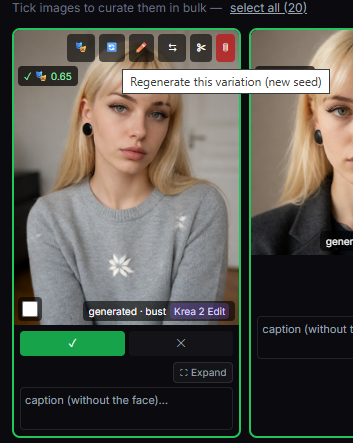
Each tile carries its own actions on hover — regenerate the variation with a new seed, edit the prompt before regenerating, crop, mirror, rotate or delete.
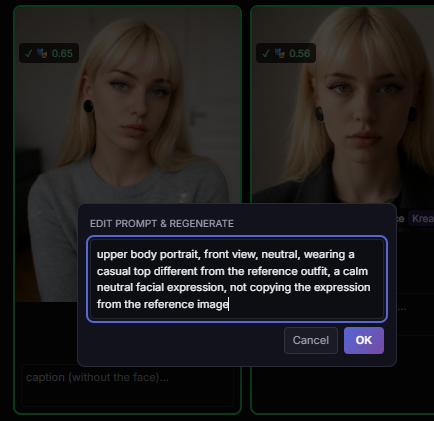
Clicking a tile opens it full size with the same actions plus Review improvement first, so a candidate is judged before it replaces anything.
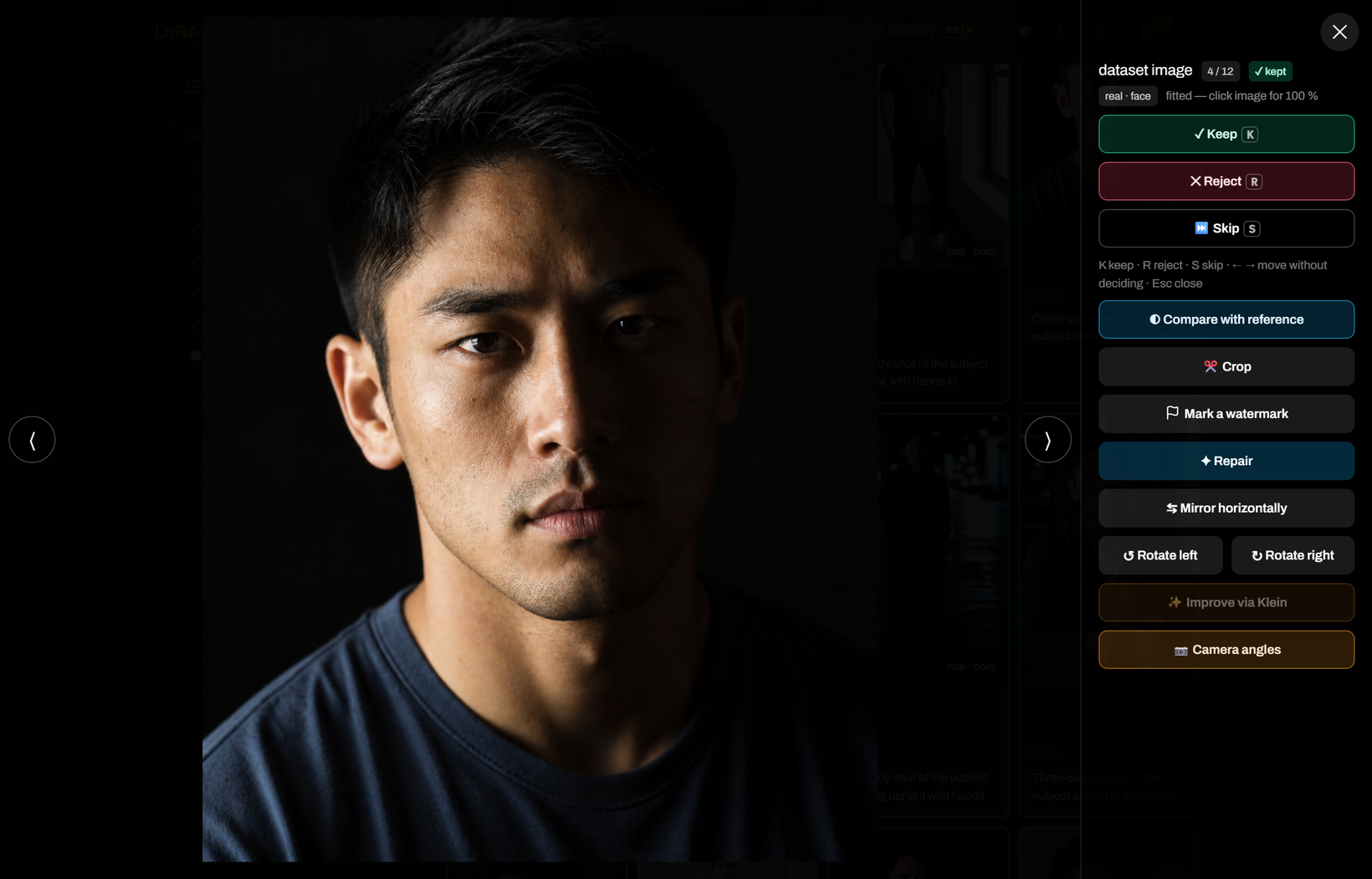
An upscale candidate is always shown against its original at the same scale. Klein re-renders detail — sharper, but skin and colour can shift, as the comparison below shows — while SeedVR2 resolves detail and leaves the look alone. Neither touches the original until you keep the candidate.
Captions are the text the trainer actually reads. The target family selects the broad form (prose or booru tags), while the dataset kind decides what must stay implicit.
| Tool | Purpose |
|---|---|
| JoyCaption / Ollama vision | Generate captions with the engine selected for this dataset |
| Vocabulary and wording options | Choose Explicit, Clinical or Safe vocabulary and add project-specific instructions |
| Caption length | Aim the captioner at Concise (about one short sentence), Standard or Detailed — a target it follows loosely, not a word cap |
| Identity/concept leak checks | Catch text that accidentally describes the invariant meant to bind to the trigger |
| Caption tools | Inspect frequencies, find/replace, isolate tags, edit in a larger panel and target only problematic images |
| Caption Lab | Bench up to four caption configurations on one image and read them side by side before re-captioning the set |
| Long + short captions | Train supported local families on two editable wordings through ai-toolkit's native text-side augmentation |
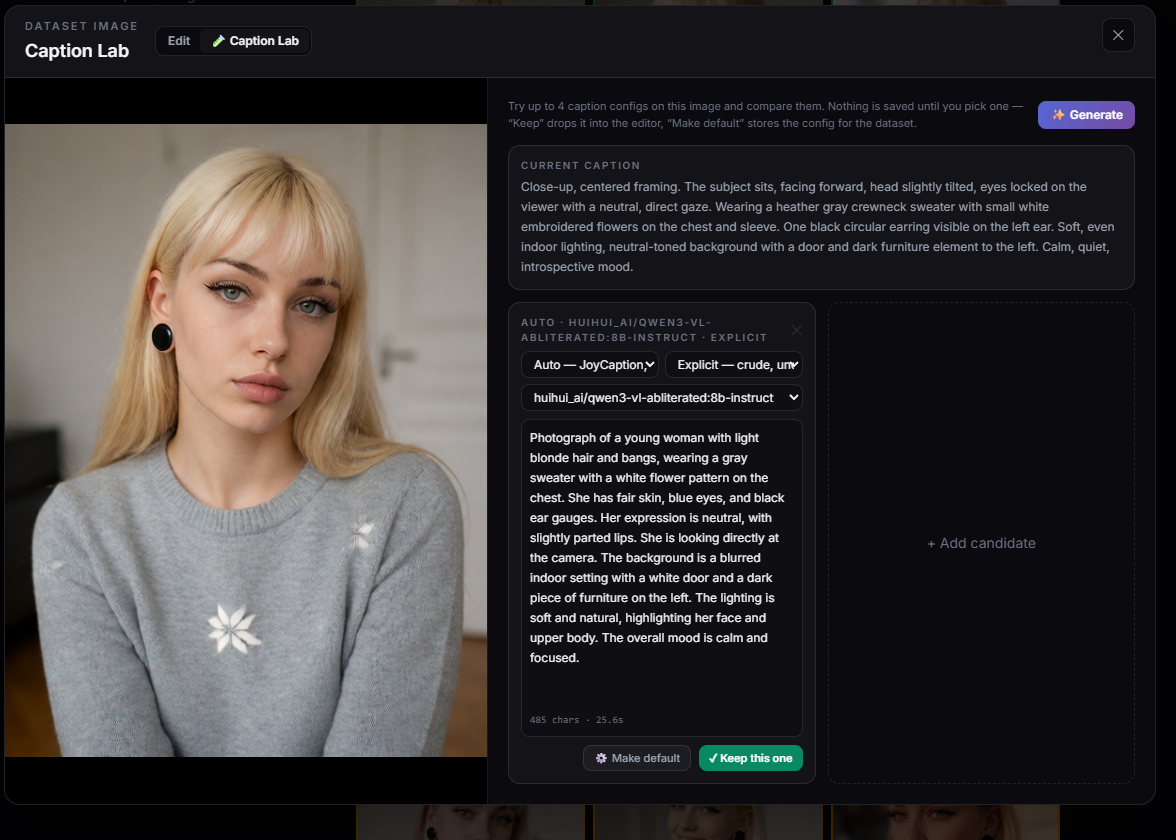
Caption batches are stoppable and reload-proof: completed text stays saved, and reopening the page reconnects to a running server-side job.
External captioners also work as a round trip:
- Export the kept set as ordinary image + same-stem
.txtpairs. - Caption with any tool that preserves those sidecars.
- Re-import the ZIP or folder. Existing images are matched instead of duplicated, and non-empty LDS captions are never overwritten silently.
See Caption your images in another tool for the exact conflict rules.
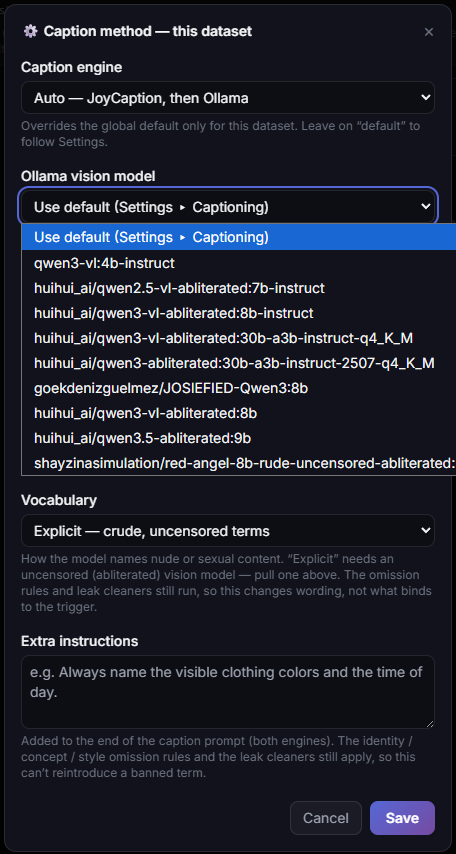
Vocabulary, length and free instructions are three independent dials on the same prompt, applied in that order — the free instructions come last, so they override a preset they contradict. The length preset is a target, not a cap: Concise asks for a single short sentence in prose (never a tag list, so the dataset still reads as prose at training launch), Detailed for several sentences. It is also unrelated to the long + short dual captions, whose short half is derived from the long one and stored separately; both can be on at once. The image bank's caption pass offers the same two dials per run.
A running batch reports its position, can be stopped at any point, and shows the identity-leak scan result as captions land.
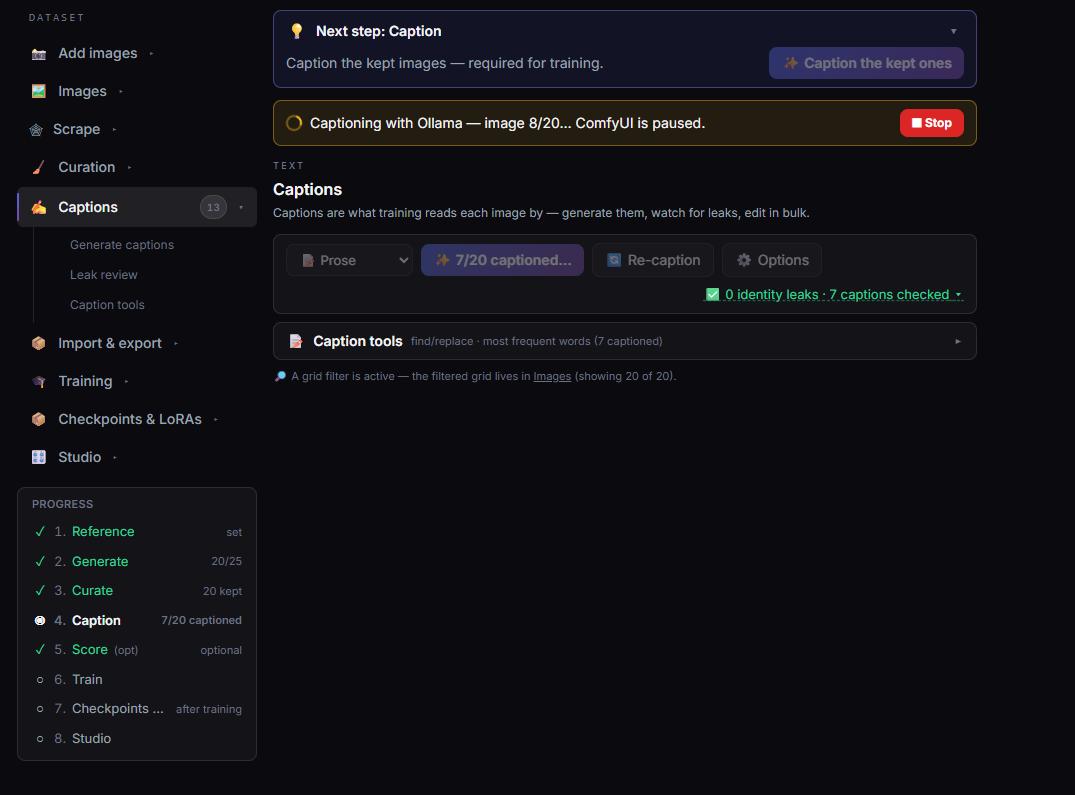
Caption Lab tries up to four caption configurations on one image and shows them next to the current caption, so an engine, vocabulary and vision model can be compared before either keeping one wording or applying the configuration to the whole set. Nothing is saved until you pick. It runs on both surfaces: in a dataset's Captions section (and from any image's caption editor), and in an image bank's 🏷️ Caption window — where the winning configuration loads into the dials of the next run, since a bank picks its caption method per run rather than storing one.
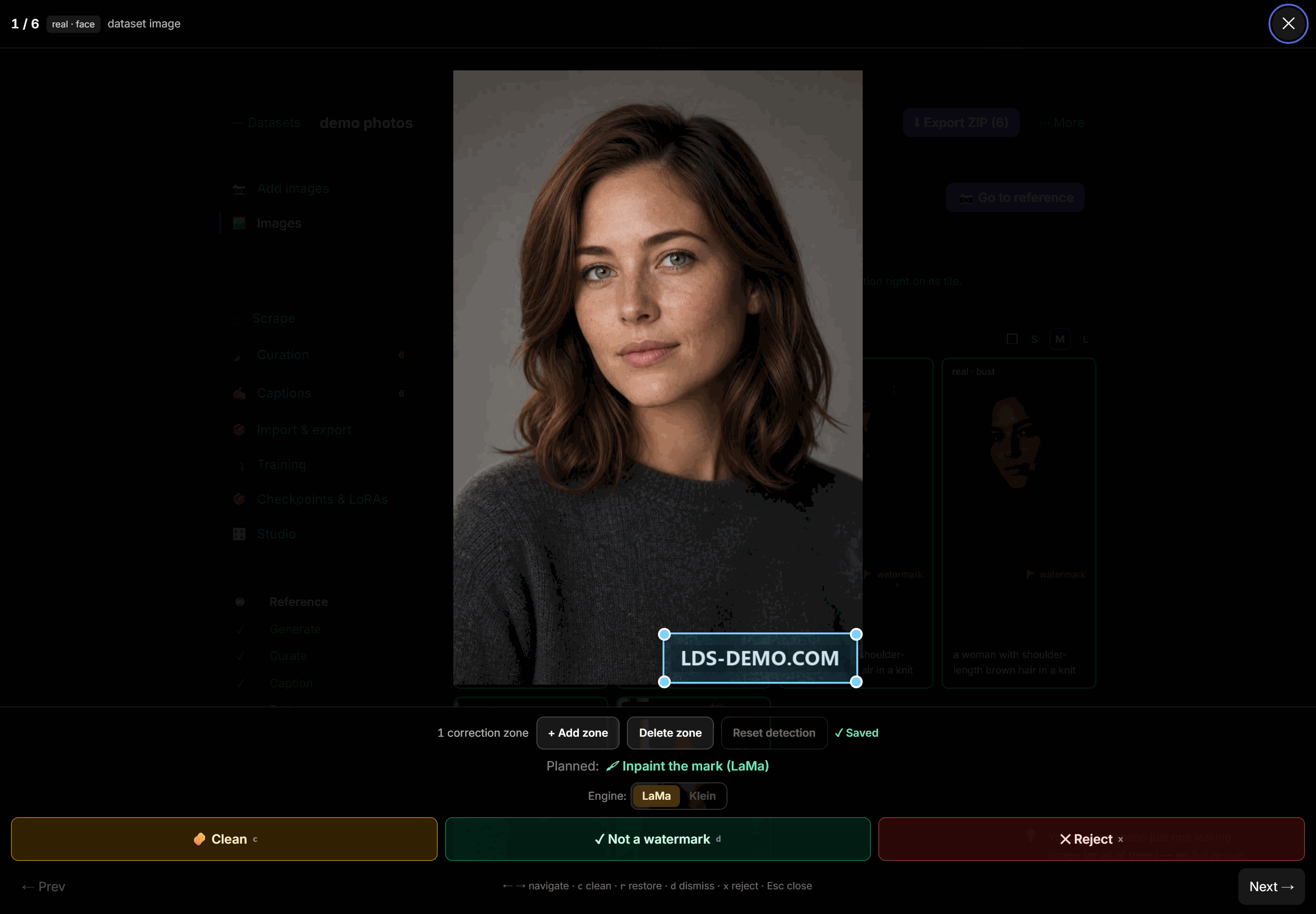
A logo or URL left in the dataset can become something the LoRA learns. The workflow is deliberately Find → Review → Clean:
- A local vision pass proposes watermark boxes but deletes nothing.
- Review each flag. Move/resize the proposed zone or draw several missing zones.
- Choose a model-free border crop or a repaint engine: LaMa for speed, Klein when a mark sits on the subject or covers the frame.
- Keep or reject the result. Restore original returns to the sibling
.origbackup so another mask or engine can be tried.
The two engines make different promises. LaMa repaints only the zones and composites them back in pixel space, so everything outside them stays untouched. Klein erases the detected zones on the photo, then hands the whole frame to Flux.2 through ComfyUI with the instruction to remove the watermarks and writes back the render it gets: the erasing stops the model handing your mark back, and the whole-photo pass also reaches marks a box cannot — tiled across the frame, or where the detector drew the zone in the wrong place. It is generative, so it re-renders everything, and a mark nobody detected can survive. Step 4 is not optional on this engine — it is how you decide whether the trade was worth it on that photo.
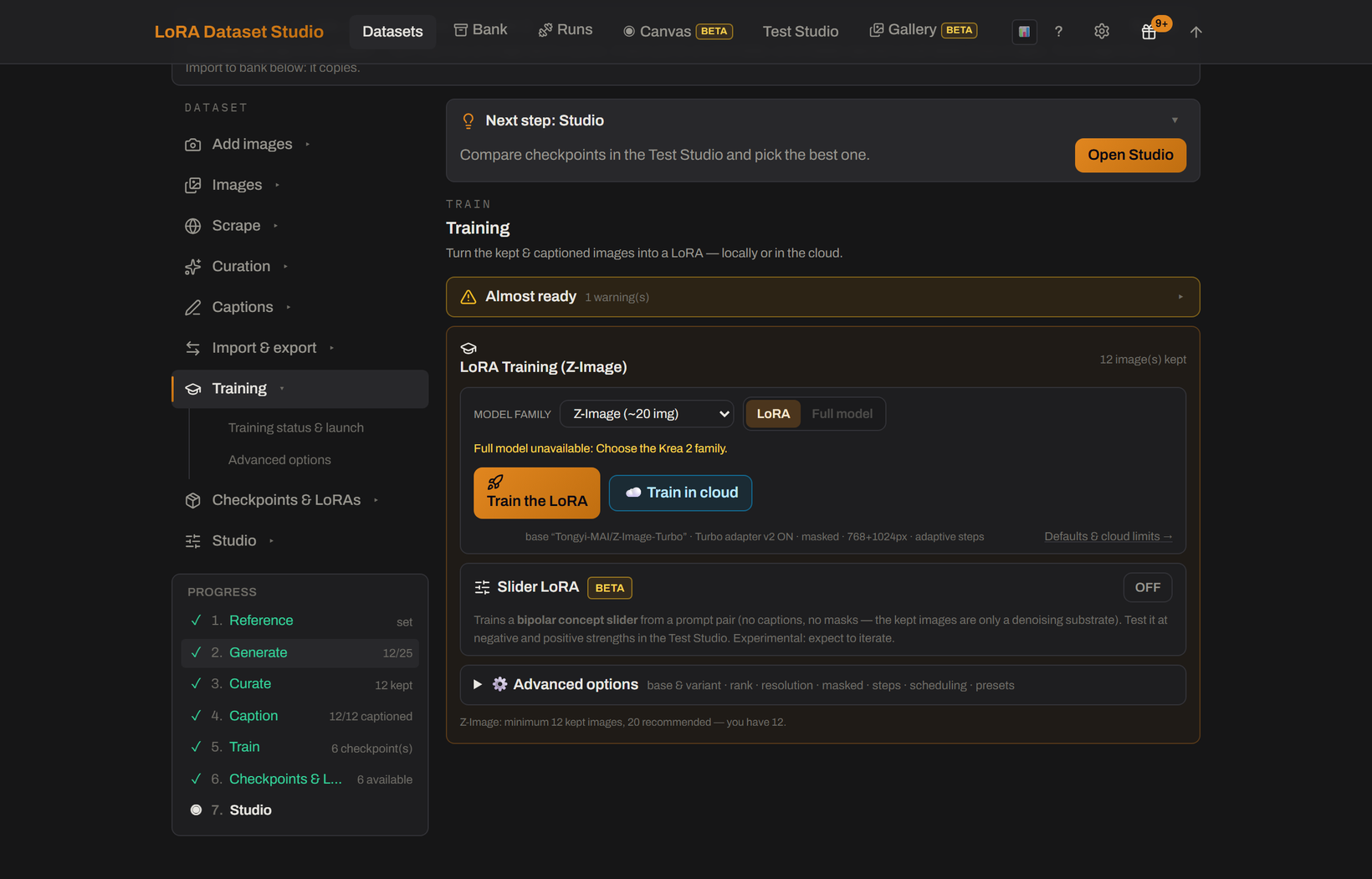
ai-toolkit is the local training engine. The guided panel builds its config, applies family/kind rules and runs the final readiness check; raw config control remains available by using ai-toolkit directly.
The standard launch covers:
- family-scoped starters and adaptive steps;
- image, caption, duplicate, disk, VRAM, base and compatibility checks;
- rank/alpha, resolution, LoRA or LoKr, dropout, timestep weighting, optimizer, scheduler, EMA and save/sample cadence;
- masked Character training and optional Concept face masks;
- queued local jobs and a protected stop action;
- custom compatible base weights and checkpoint continuation.
Readiness messages distinguish a quality warning you may explicitly accept from a real impossibility. A queued run is revalidated again when it actually starts.
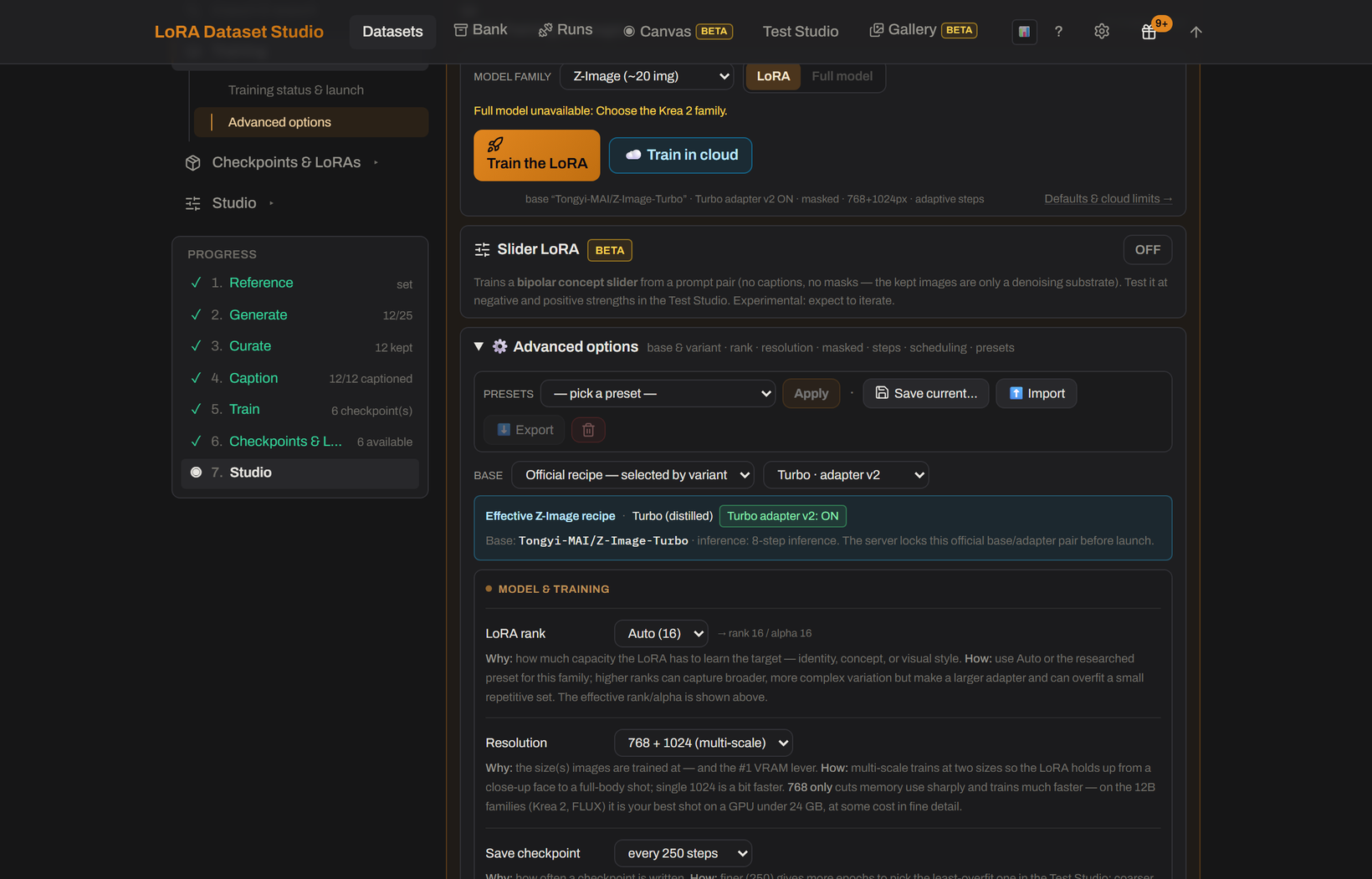
Advanced options exposes the levers behind the starter — base and variant, rank, resolution, save and preview cadence — and every one of them carries the why and the how inline instead of a bare label.
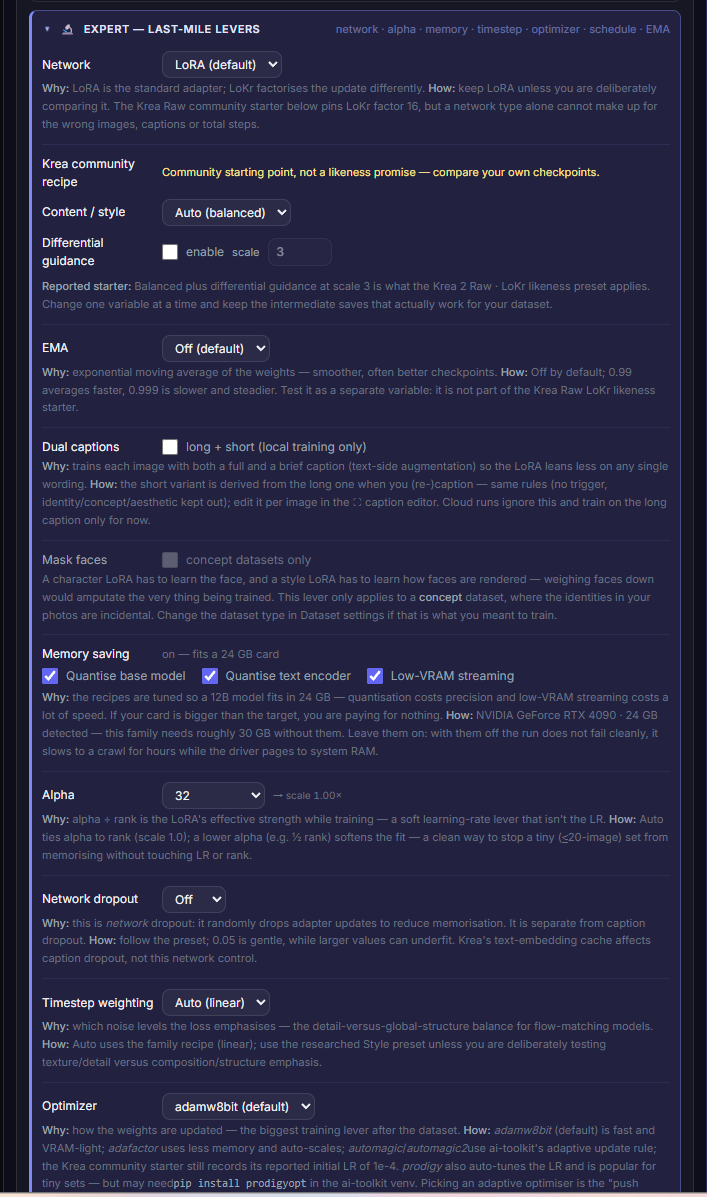
Below them, Expert — last-mile levers holds what should only move one variable at a time: network type, EMA, dual captions, face masking, memory saving, alpha, dropout, timestep weighting and optimizer. The memory-saving block reads the detected card and states what it costs to switch the options off.
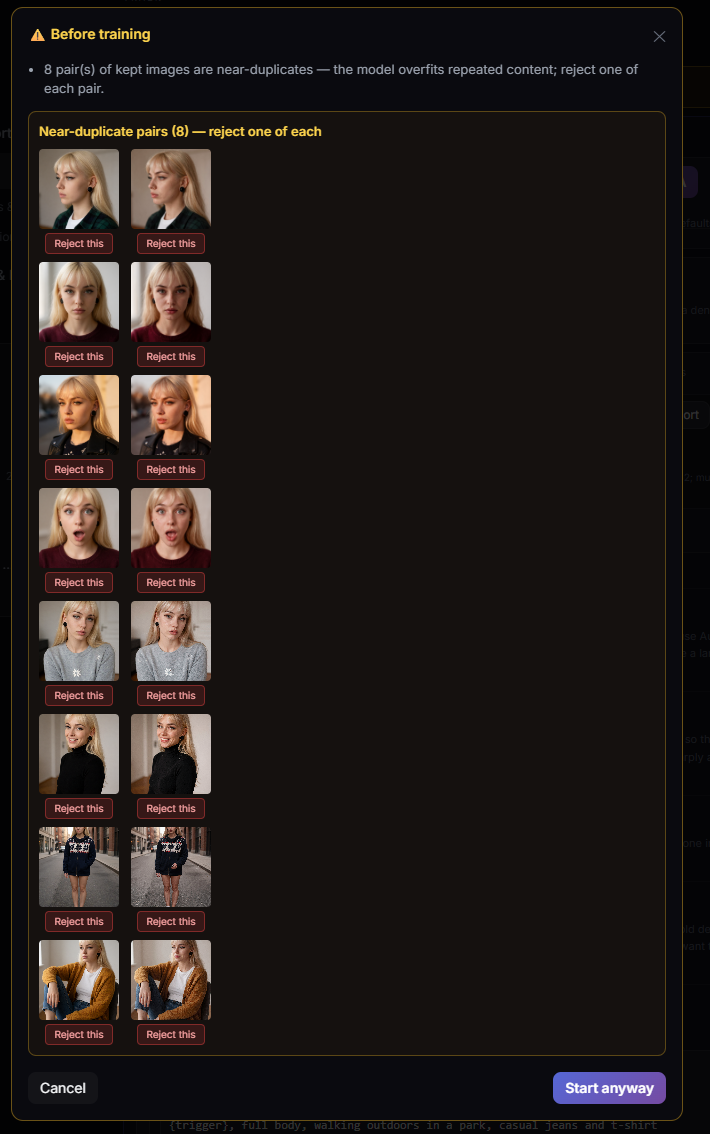
The final check runs before the launch, not during it. Near-duplicate pairs are shown side by side with a per-image Reject this, because repeated content is what the model overfits — and Start anyway stays available once you have seen what you are accepting.
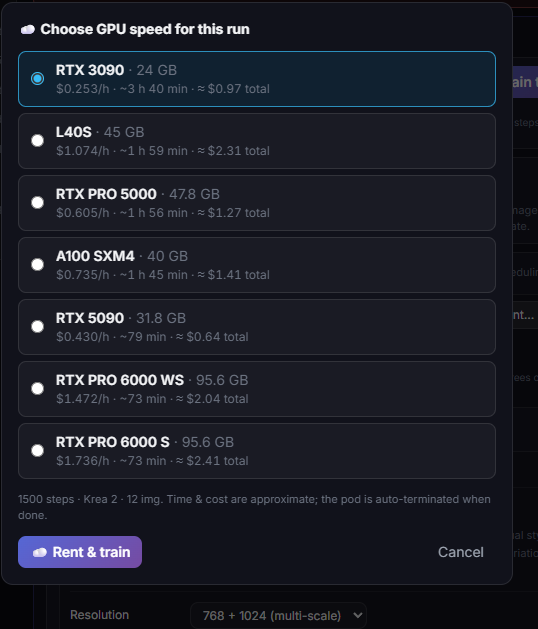
The cloud lane rents a vast.ai GPU for one run, stages the same dataset/config, streams progress and saved epochs home, and terminates the pod automatically. Stop and freeze handling are evidence-based so a silent pod cannot keep billing indefinitely; downloads use byte progress rather than the training-step watchdog.
The offer list is priced per run, not per hour alone: each candidate GPU shows its hourly rate, the estimated duration for this dataset and step count, and the resulting total. Estimates, as the dialog says.
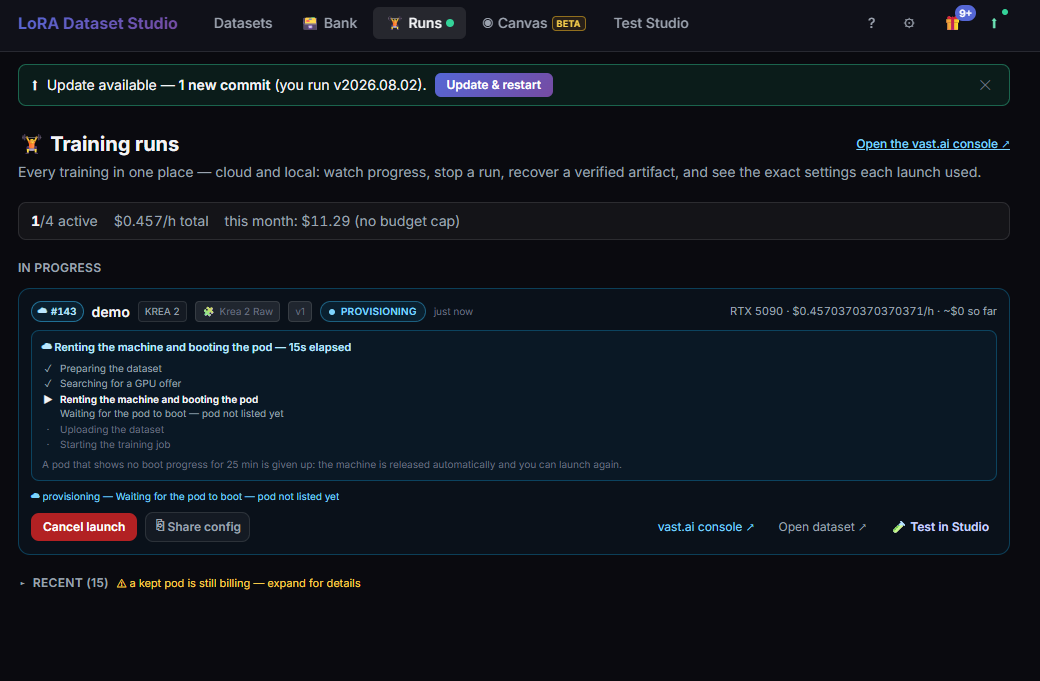
Once rented, the launch reports each stage — searching for an offer, booting the pod, uploading the dataset, starting the job — so a stall is attributable. A pod that shows no boot progress for 25 minutes is released automatically.
Cloud support is family-specific and shown in the launch UI. Dense Krea 2 uses a separate, narrowly scoped Hugging Face delivery token; follow Cloud training before the first paid run.
Runs places local and cloud jobs together with their stage, progress, ETA, logs, samples, exact recipe, stop/retry/continue/download actions and a paste-safe Share config summary. A run can open its dataset's Test Studio directly.
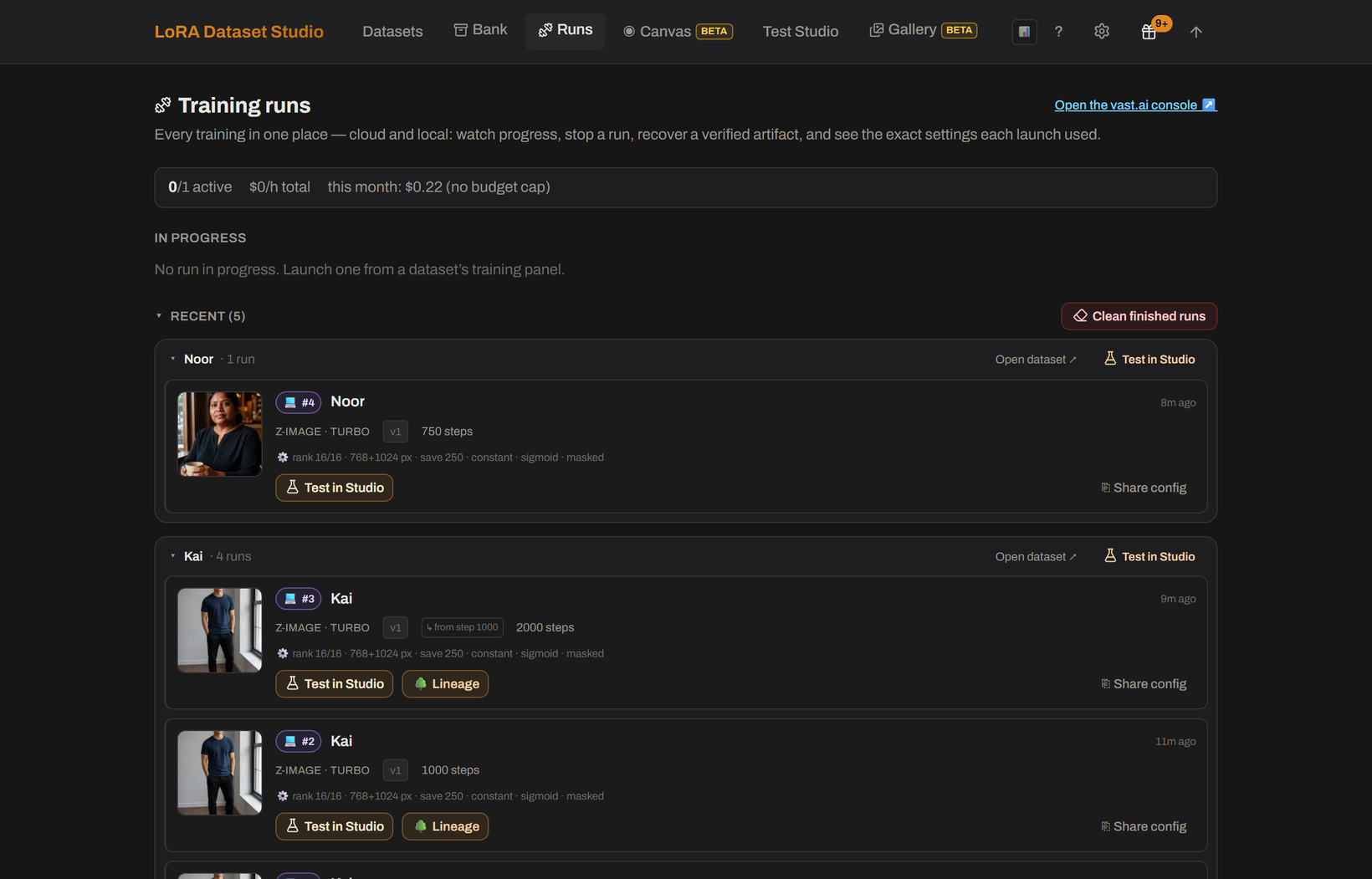
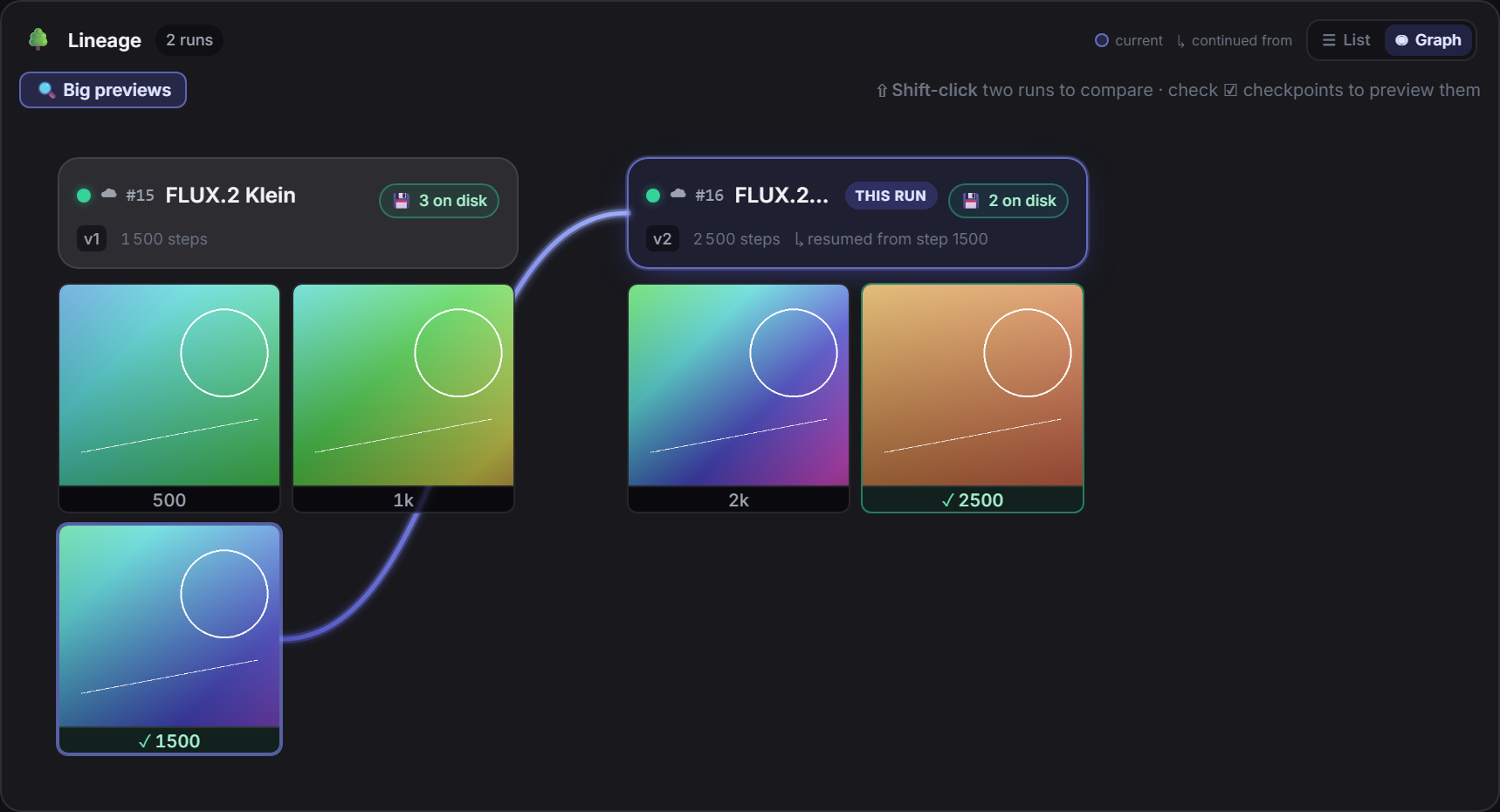
Every continuation records the exact checkpoint it resumed from. The per-dataset lineage graph exposes:
- list and graph views;
- saved epochs as checkpoint pills;
- exact run settings, notes and side-by-side config diffs;
- same-prompt/same-seed checkpoint previews;
- download, deploy and continue-from-here actions;
- honest reconstruction of older runs, with missing files marked rather than invented.
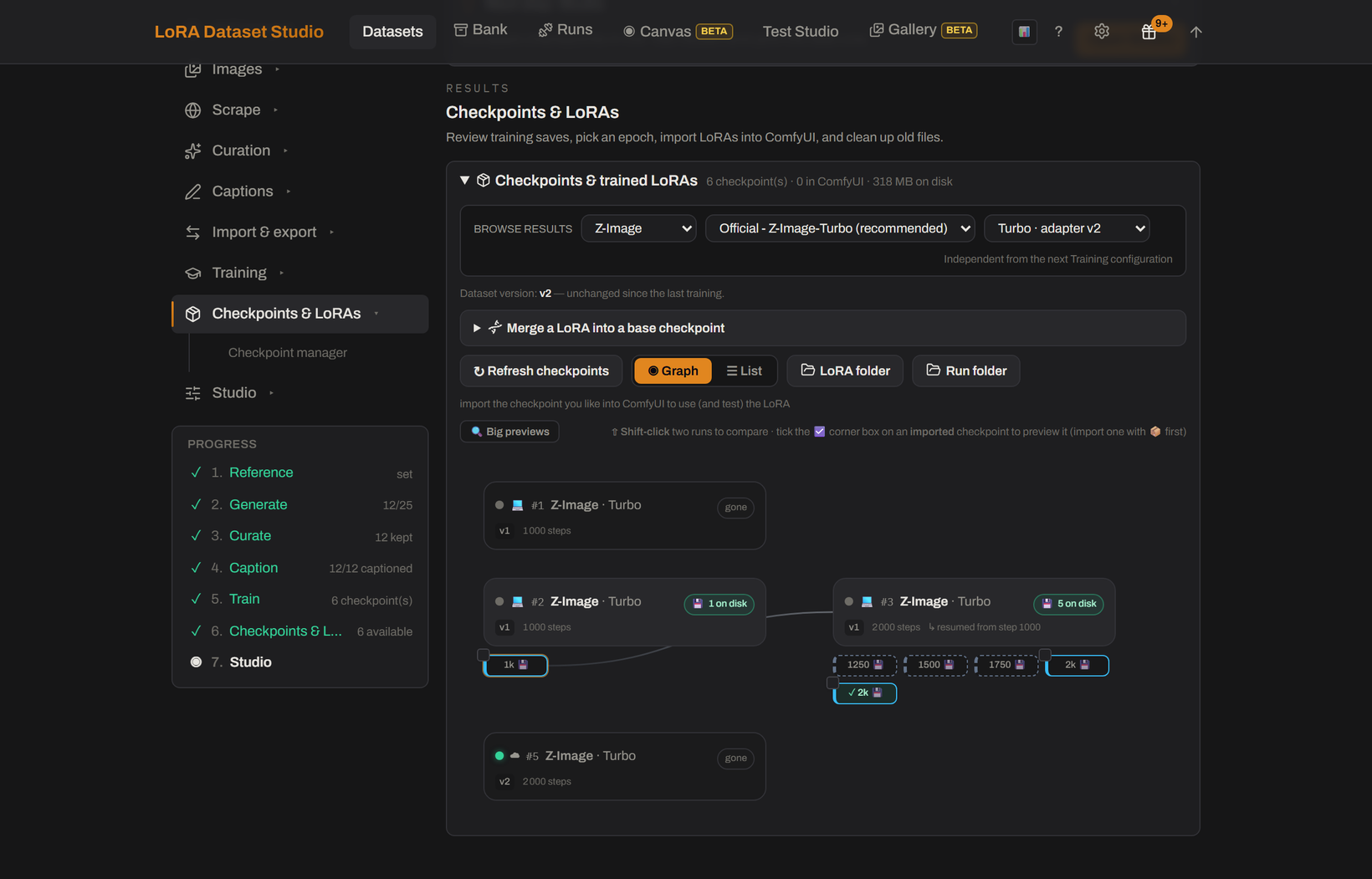
Clicking a checkpoint pill opens its actions on the board — download that exact epoch, or resume training from it — without leaving the graph.
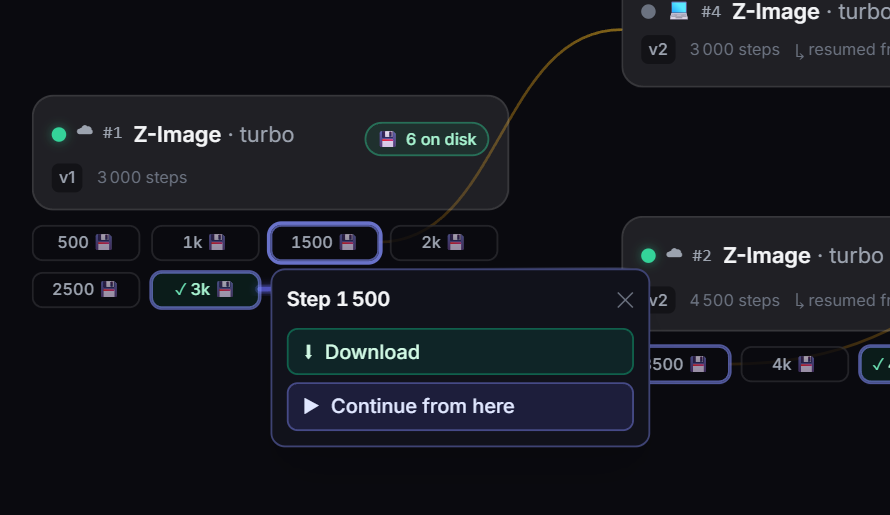
Clicking a run card opens its recipe: rank, alpha, learning rate, optimizer, timestep weighting, network type and EMA, as they were frozen at launch.
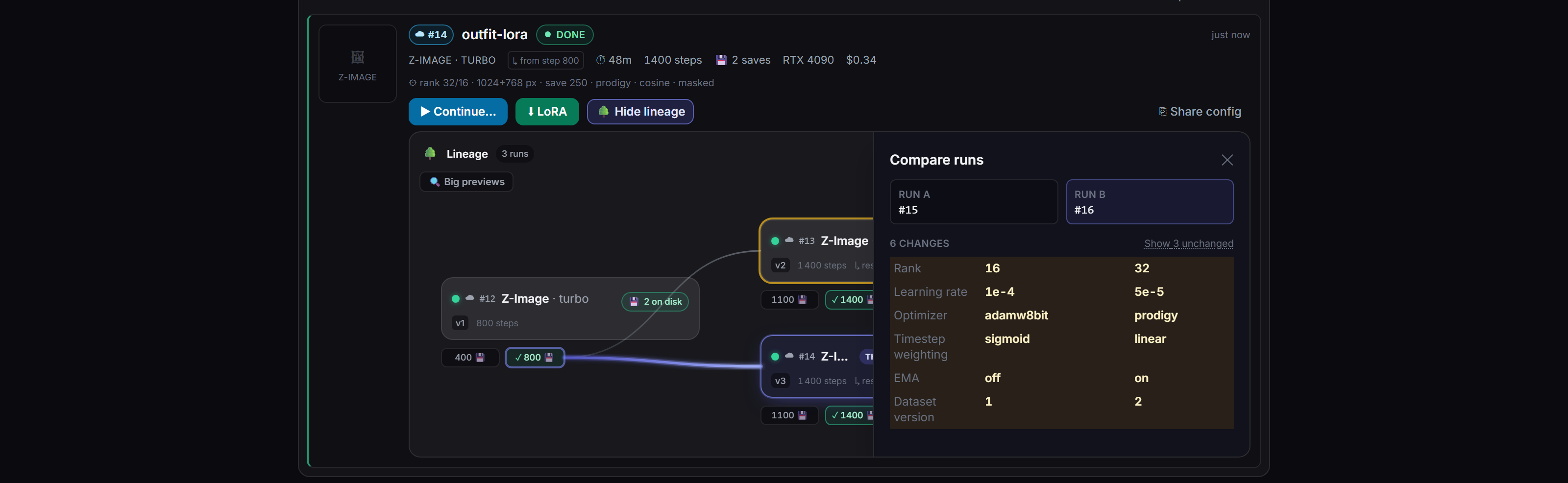
Shift-click two runs and the compare drawer answers "what did I change between v2 and v3" — differing settings highlighted, identical ones folded away.
🔍 Big previews blows the same-prompt/same-seed thumbnails up into a grid on the board itself, so several epochs can be judged side by side before picking one.
The separate LoRA Canvas puts every dataset's lineage on one pan/zoom board. It adds persistent card placement, cross-dataset run diffs, same-family checkpoint generation on one prompt/seed, galleries, movable/resizable pinned images, side-by-side fused image strips, bulk pinning and continuation from a checkpoint. A checkpoint not yet deployed is copied only after the launch button says so; mixed model families are refused before generation.
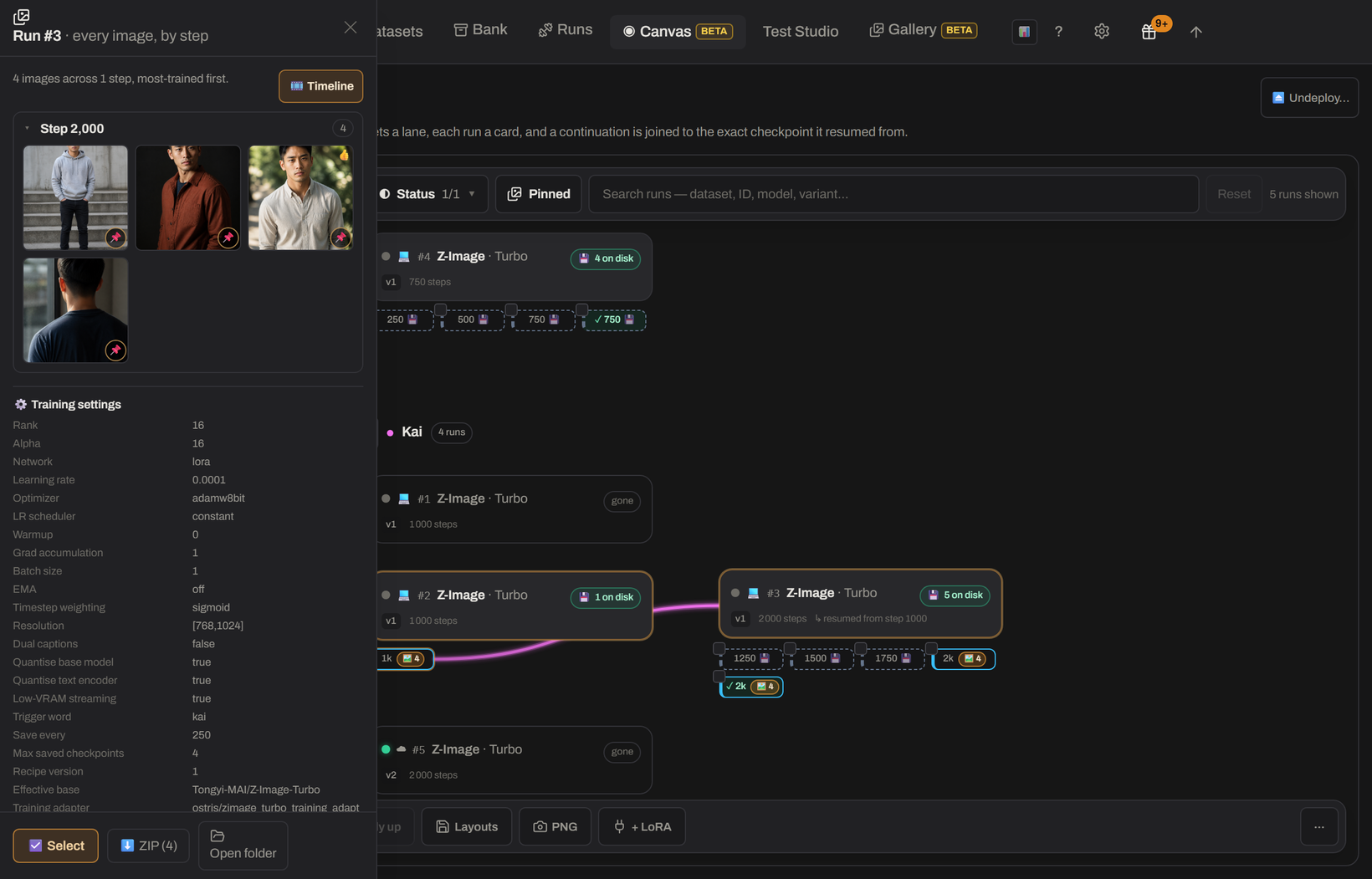
Clicking a run there opens the same inspector as the per-dataset graph: the frozen recipe of that run, its notes, and — in its own section — the deletion that takes the checkpoints and generated images with it.
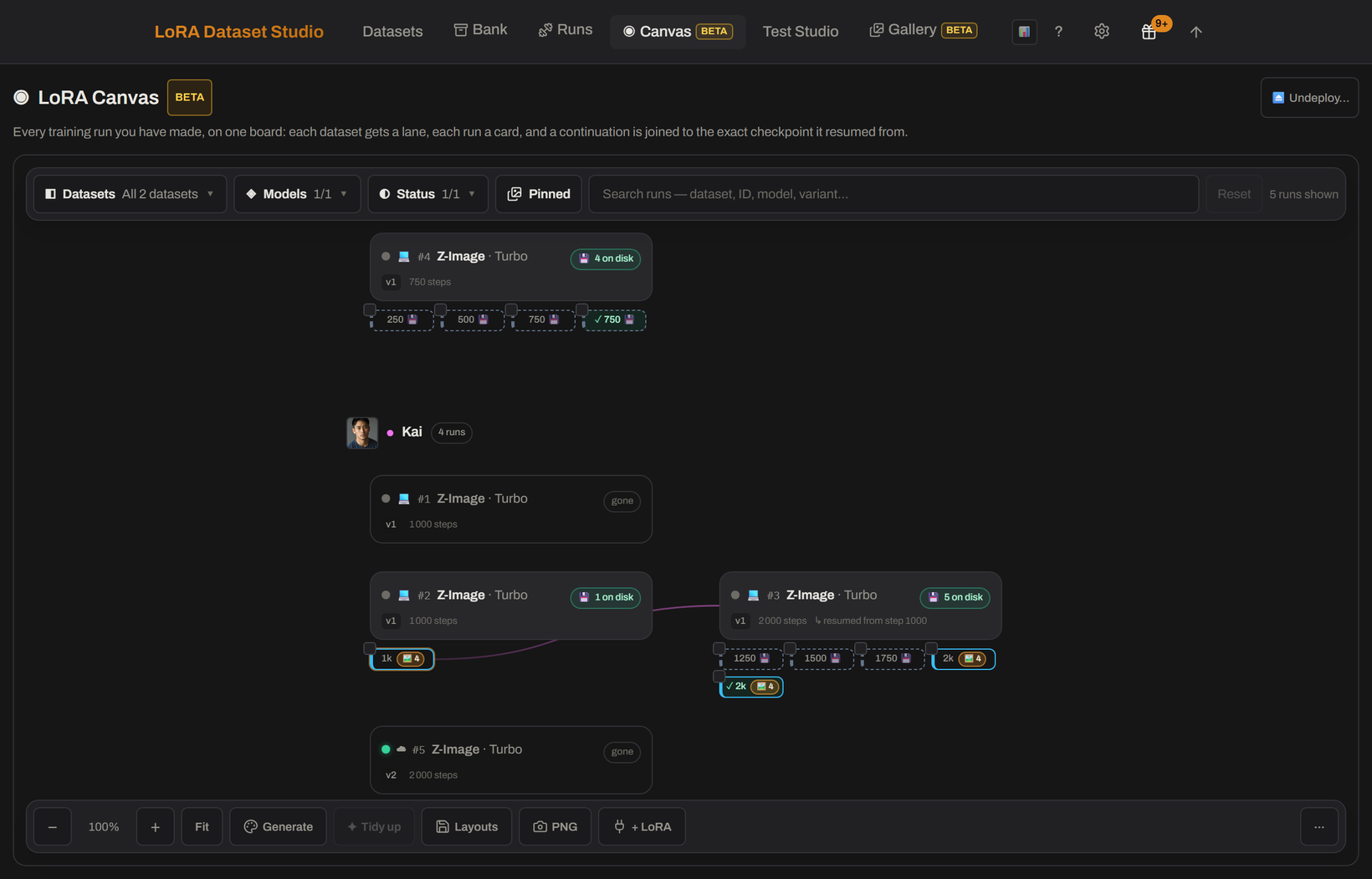
The detailed board controls are in The LoRA Canvas.
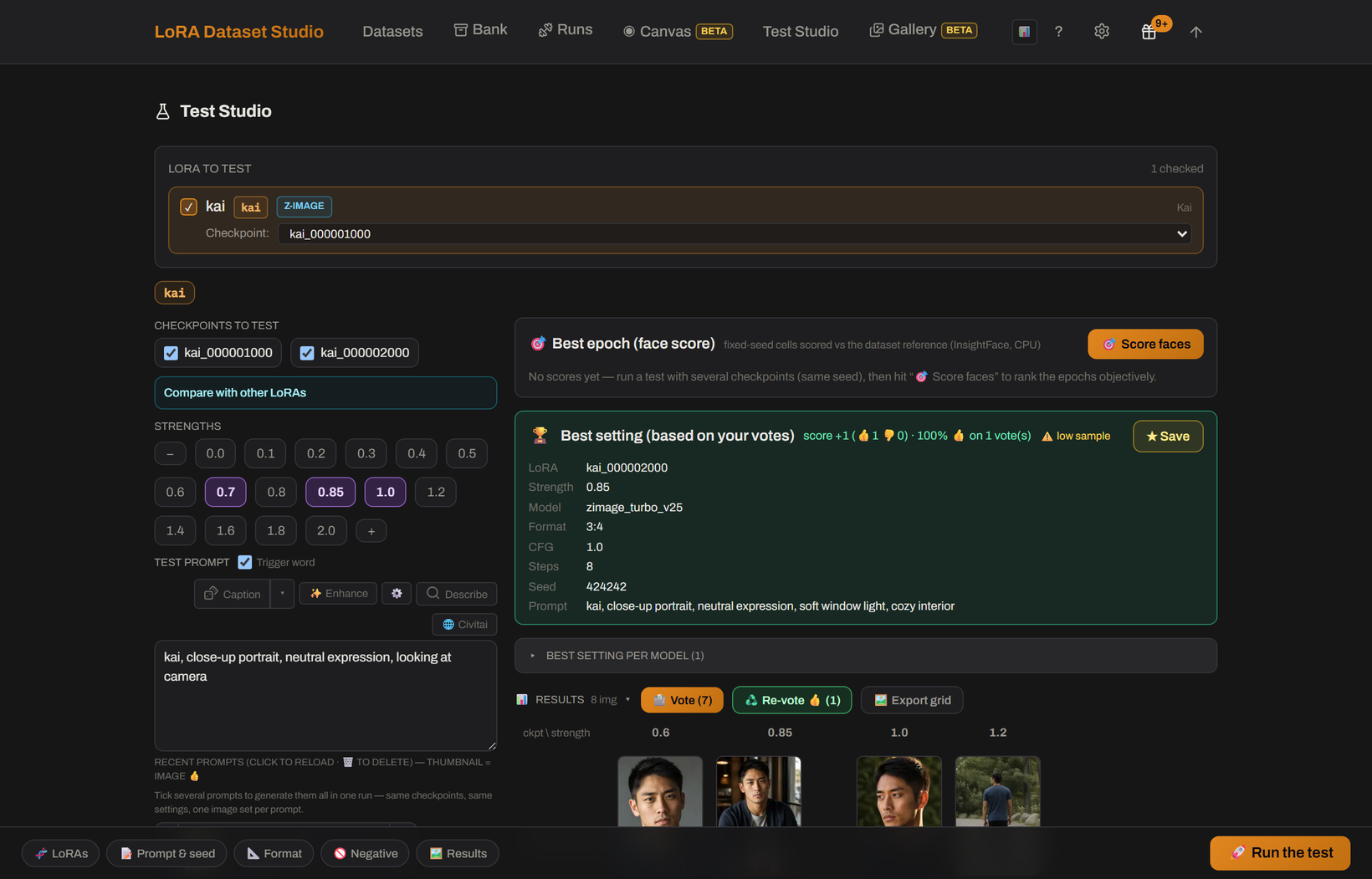
A trained LoRA is not automatically a good LoRA. Test Studio compares checkpoint/LoRA × strength under a fixed seed:
- sweep positive, over-cooked and slider-negative strengths;
- compare several LoRAs from the same model family;
- turn an image into a prompt with local vision, or draw a random non-empty caption from a chosen dataset or bank;
- vote, compute a Wilson ranking and optionally rank Character results by face similarity;
- flip adjacent variants in place and export a labelled grid.
Open Studio straight from a run in the Runs hub; the dataset is preselected. If ComfyUI drops during a batch, the current cell becomes paused and later cells are not submitted against potentially different state. Restart/recover ComfyUI, cancel the paused batch, then choose explicitly what to resume. See Recover a paused Test Studio batch.
Nothing in the workflow locks data into the app:
| Exit | What leaves |
|---|---|
| Training ZIP / sidecars | Kept images with same-stem captions in a standard ai-toolkit/Kohya-compatible layout |
| Merge ZIP/folder | Images and captions from an existing dataset, with perceptual duplicates skipped |
| Portable backup | Datasets, references, decisions, captions, settings and run history; API keys are excluded |
| Hugging Face dataset | Kept image/caption pairs, private by default and published only after a rights confirmation |
| ComfyUI deployment | A selected local checkpoint or downloaded cloud result copied into the configured LoRA tree |
| Trash | App-managed deletions remain recoverable until Trash is emptied |
When trained LoRAs are included in a portable backup, restore can rebuild both dataset state and training history on another installation.